> ## Documentation Index
> Fetch the complete documentation index at: https://docs.isotopes.ai/llms.txt
> Use this file to discover all available pages before exploring further.
# BigQuery Connector
Connecting BigQuery to aidnn lets your team analyze warehouse data live alongside the rest of your sources. You can authenticate either with Google OAuth (sign in with your Google account) or with a Google Cloud **service account** key. This guide covers the service account method, which is the better fit for shared, long-lived connectors that shouldn't depend on one person's login.
## 1. Add the BigQuery connector in aidnn
### Open the Connectors page
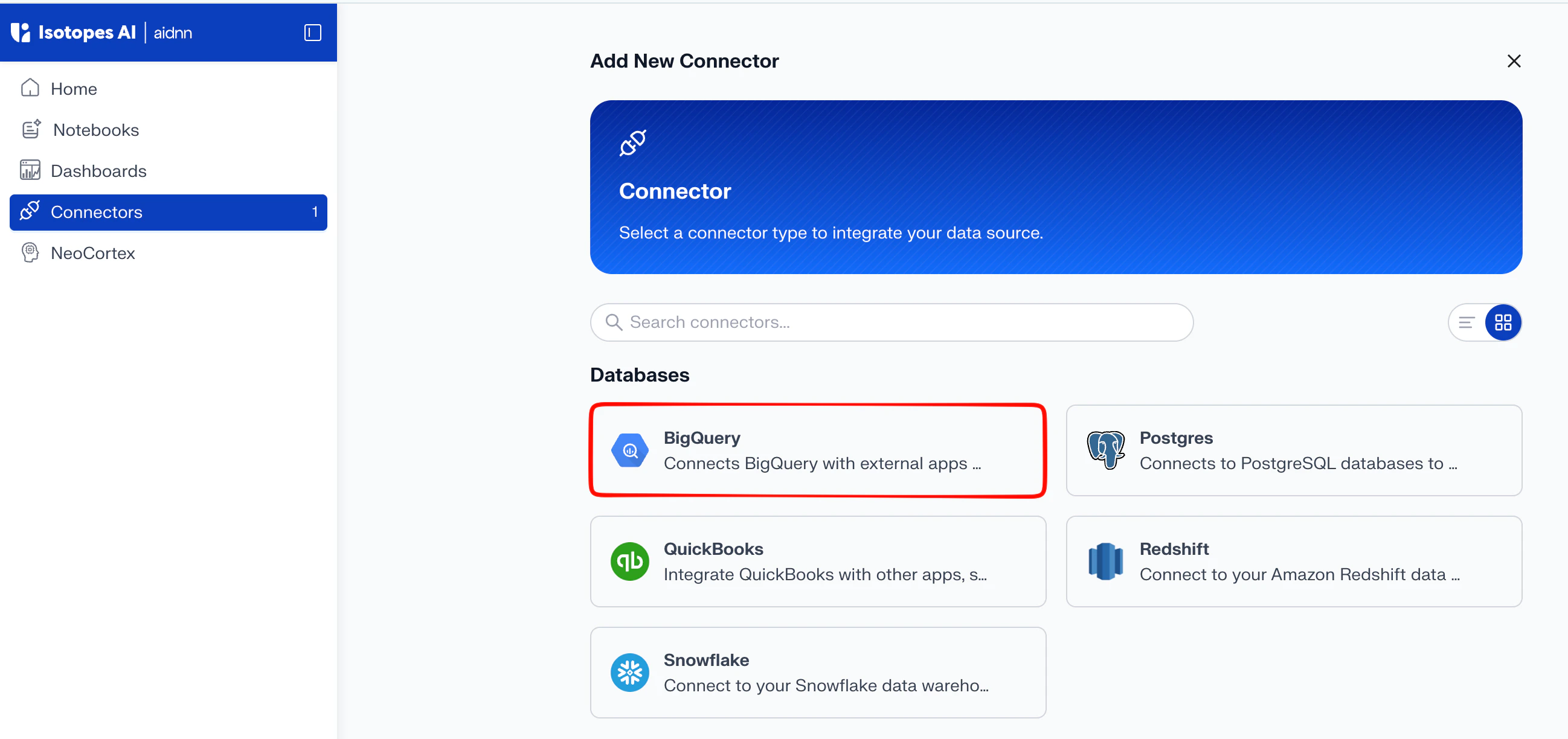
From the aidnn home screen, click **Connectors** in the left sidebar.
### Start a new connector
Click **Add New Connector** in the top-right corner. You'll see a grid of every available connector grouped by category.
### Pick BigQuery
Under **Databases**, select **BigQuery**. This opens the **Add New BigQuery Service** page.
 ## 2. Fill in the connector details
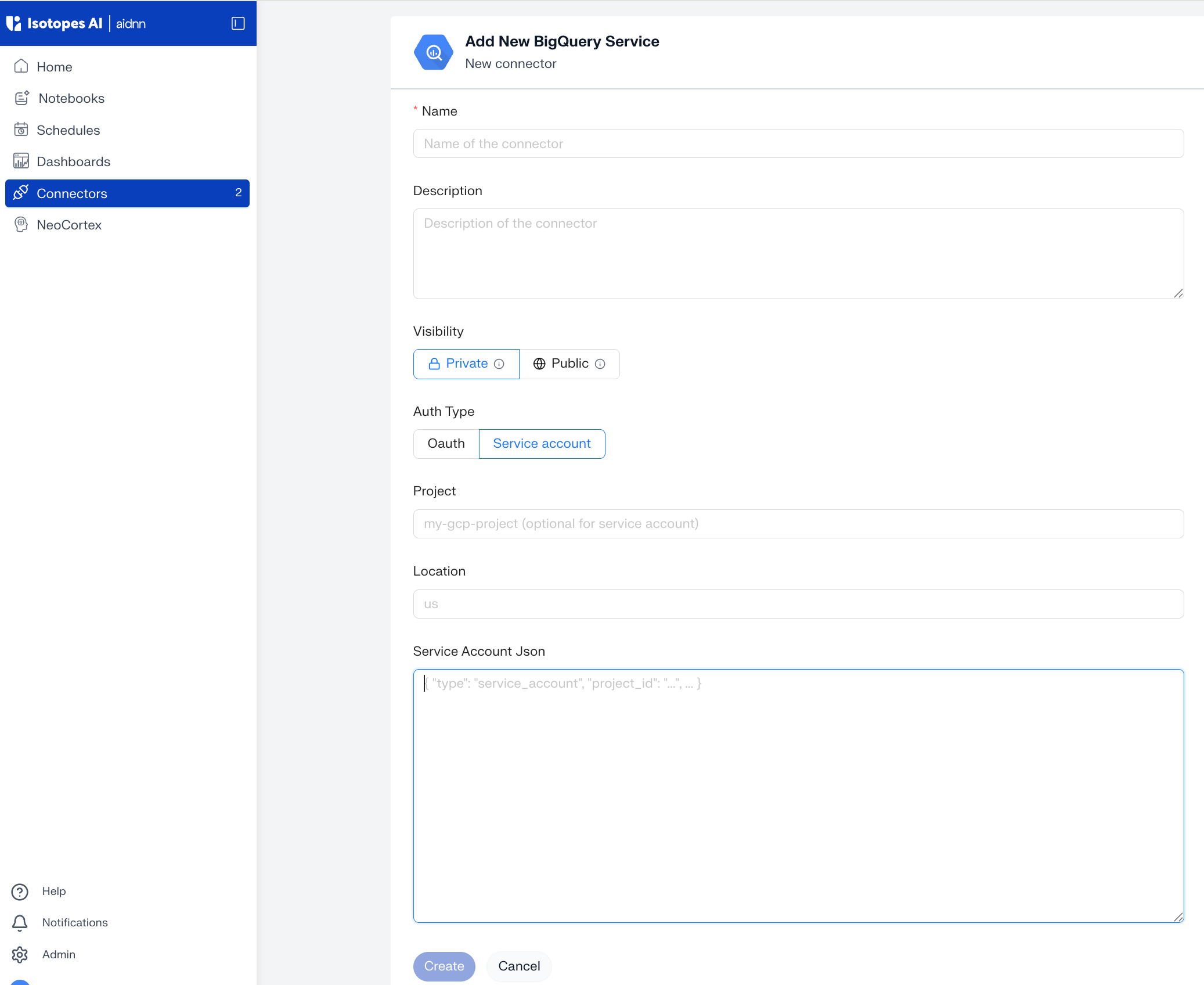
The Add New BigQuery Service form has two parts: identification (name, description, visibility) and authentication.
### General fields
* **Name** - a descriptive name; this is what shows up as the connector name once setup is complete (for example, "BigQuery – Analytics").
* **Description** - optional, useful when you connect more than one BigQuery project.
* **Visibility** - Public (everyone in your org can use it) or Private (only you).
### Add the service account details
* **Auth Type** - select **Service account** to authenticate with a Google Cloud service account key. (The other option is Oauth.)
* **Project** - your Google Cloud Project ID (for example, my-gcp-project). Optional with a service account — aidnn reads the project from the key.
* **Location** - the location of your BigQuery datasets (for example, us or europe-west1).
* **Service Account Json** - paste the full contents of the service account JSON key, which starts with `{ "type": "service_account", "project_id": "...", ... }`. The service account needs read access to the datasets you want to query — the **BigQuery Data Viewer** and **BigQuery Job User** roles are sufficient.
## 2. Fill in the connector details
The Add New BigQuery Service form has two parts: identification (name, description, visibility) and authentication.
### General fields
* **Name** - a descriptive name; this is what shows up as the connector name once setup is complete (for example, "BigQuery – Analytics").
* **Description** - optional, useful when you connect more than one BigQuery project.
* **Visibility** - Public (everyone in your org can use it) or Private (only you).
### Add the service account details
* **Auth Type** - select **Service account** to authenticate with a Google Cloud service account key. (The other option is Oauth.)
* **Project** - your Google Cloud Project ID (for example, my-gcp-project). Optional with a service account — aidnn reads the project from the key.
* **Location** - the location of your BigQuery datasets (for example, us or europe-west1).
* **Service Account Json** - paste the full contents of the service account JSON key, which starts with `{ "type": "service_account", "project_id": "...", ... }`. The service account needs read access to the datasets you want to query — the **BigQuery Data Viewer** and **BigQuery Job User** roles are sufficient.
 ## 3. Create the connector
Once the fields are filled in, click **Create**. aidnn saves the connector and takes you to its detail page.
## 4. Sync metadata
A new connector starts with nothing synced — the **Sync History** on the detail page is empty. Syncing tells aidnn which datasets to pull metadata from so notebooks can query them.
### Step 1 - Click Sync now
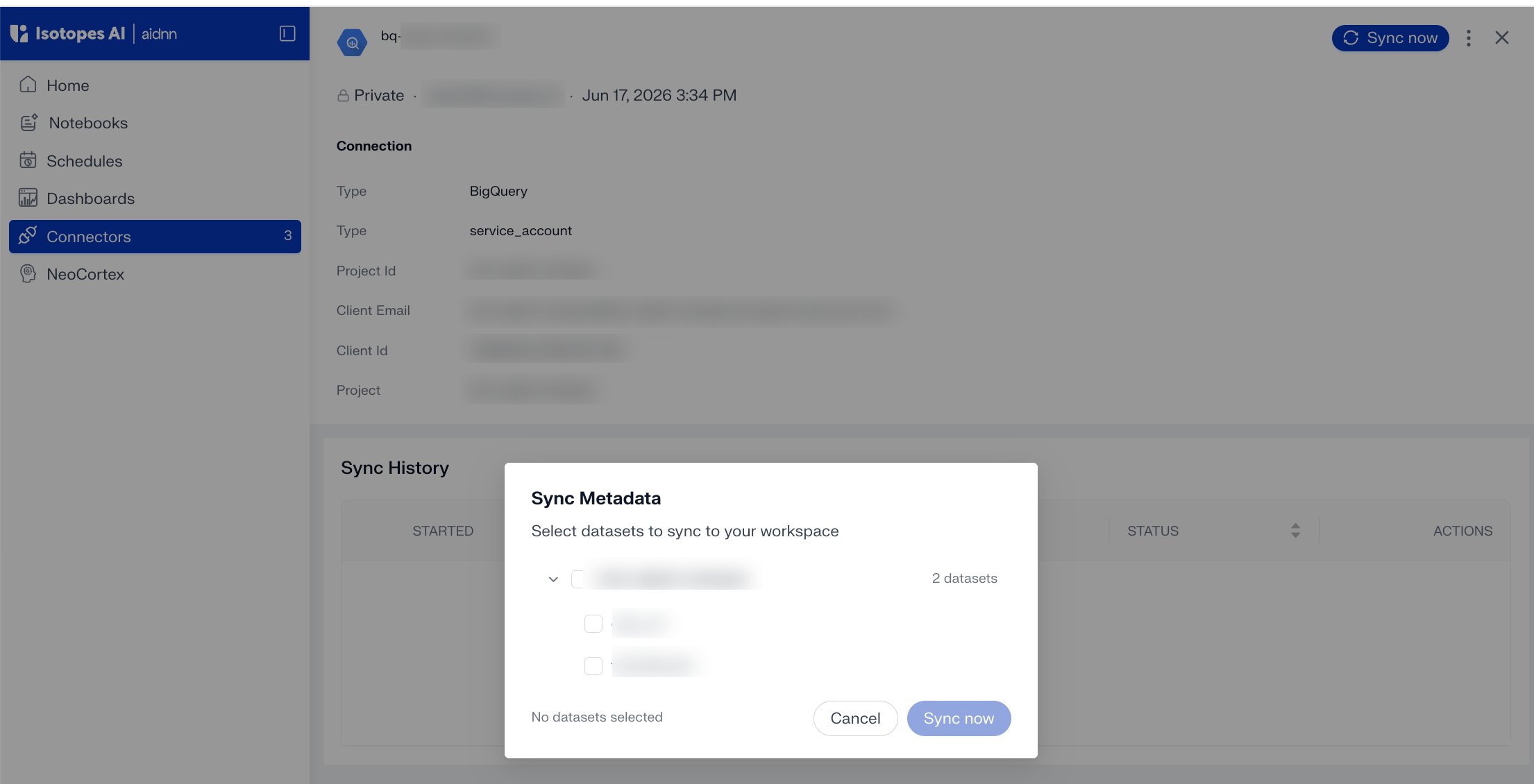
Click **Sync now** in the top-right of the detail page.
### Step 2 - Pick the datasets to sync
A **Sync Metadata** panel lists the datasets aidnn discovered in your project. Check the datasets you want to make available, then click **Sync now**.
## 3. Create the connector
Once the fields are filled in, click **Create**. aidnn saves the connector and takes you to its detail page.
## 4. Sync metadata
A new connector starts with nothing synced — the **Sync History** on the detail page is empty. Syncing tells aidnn which datasets to pull metadata from so notebooks can query them.
### Step 1 - Click Sync now
Click **Sync now** in the top-right of the detail page.
### Step 2 - Pick the datasets to sync
A **Sync Metadata** panel lists the datasets aidnn discovered in your project. Check the datasets you want to make available, then click **Sync now**.
 ## Row-level security
To restrict which rows of a synced table each user can see, add a row access policy on the connector — see [BigQuery Row-Level Security](/data-sources/bigquery-row-level-security).
## Support
Please reach out to [support@isotopes.ai](mailto:support@isotopes.ai) for more details if you face any issues.
## Row-level security
To restrict which rows of a synced table each user can see, add a row access policy on the connector — see [BigQuery Row-Level Security](/data-sources/bigquery-row-level-security).
## Support
Please reach out to [support@isotopes.ai](mailto:support@isotopes.ai) for more details if you face any issues.