

1. Add the Google Drive connector in aidnn
Open the Connectors page
From the aidnn home screen, click Connectors in the left sidebar.Start a new connector
Click Add New Connector in the top-right corner. You’ll see a grid of every available connector grouped by category.Pick Google Drive
Under Files, select Google Drive.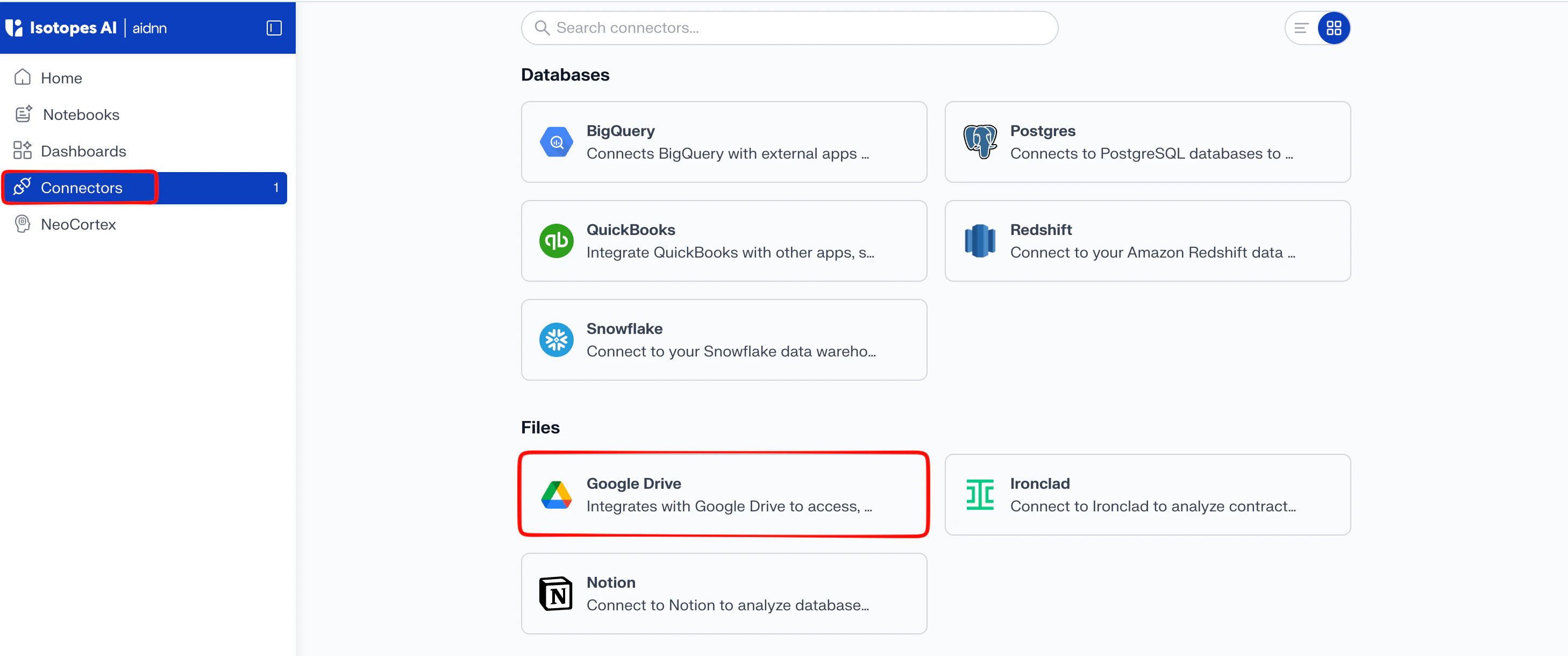
2. Authenticate through Pipedream
aidnn uses Pipedream to handle the conversation with Google on aidnn’s behalf, so the credentials you enter never pass through aidnn directly. In the pop-up window, click Continue on the Pipedream screen to proceed.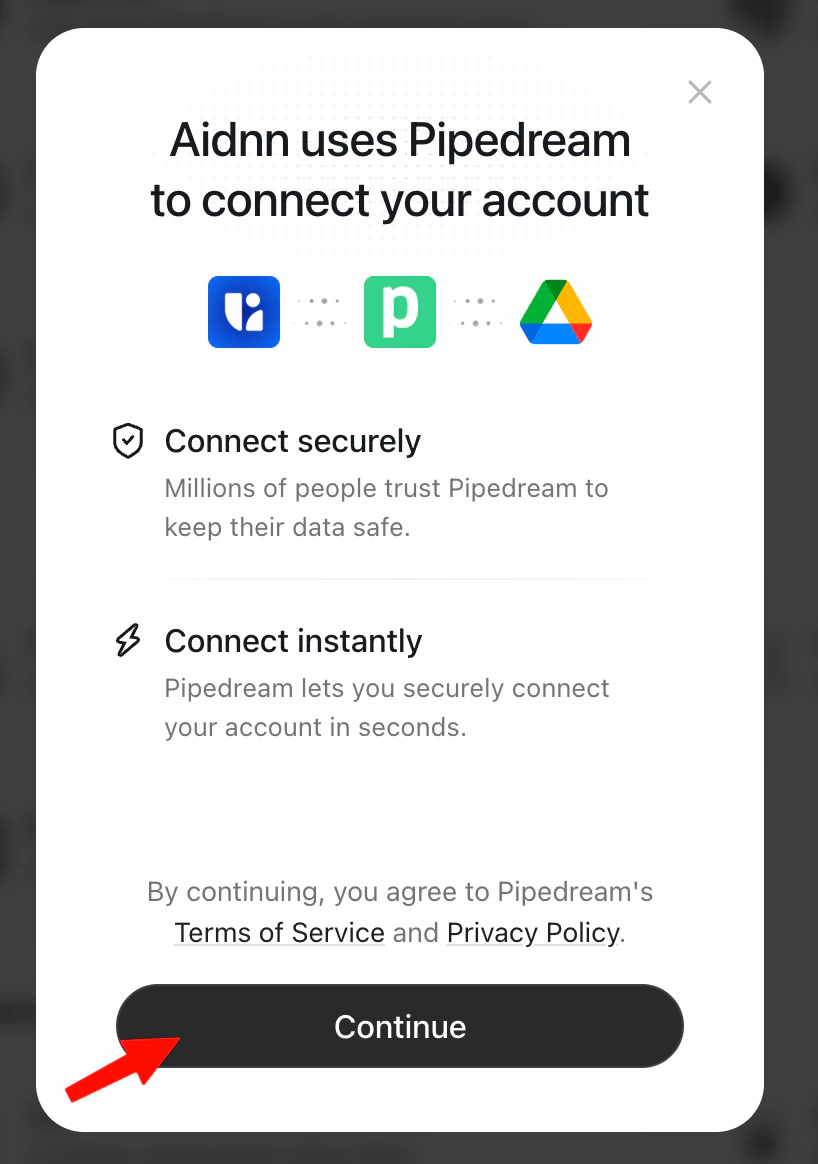
3. Sign in with Google
Pipedream hands you off to Google’s standard sign-in page. Enter your credentials and complete any extra verification (single sign-on, two-factor) your organization requires.4. Confirm the connection
When Google finishes, Pipedream shows a Successfully connected your Google Drive account! confirmation. Click Continue to return to aidnn.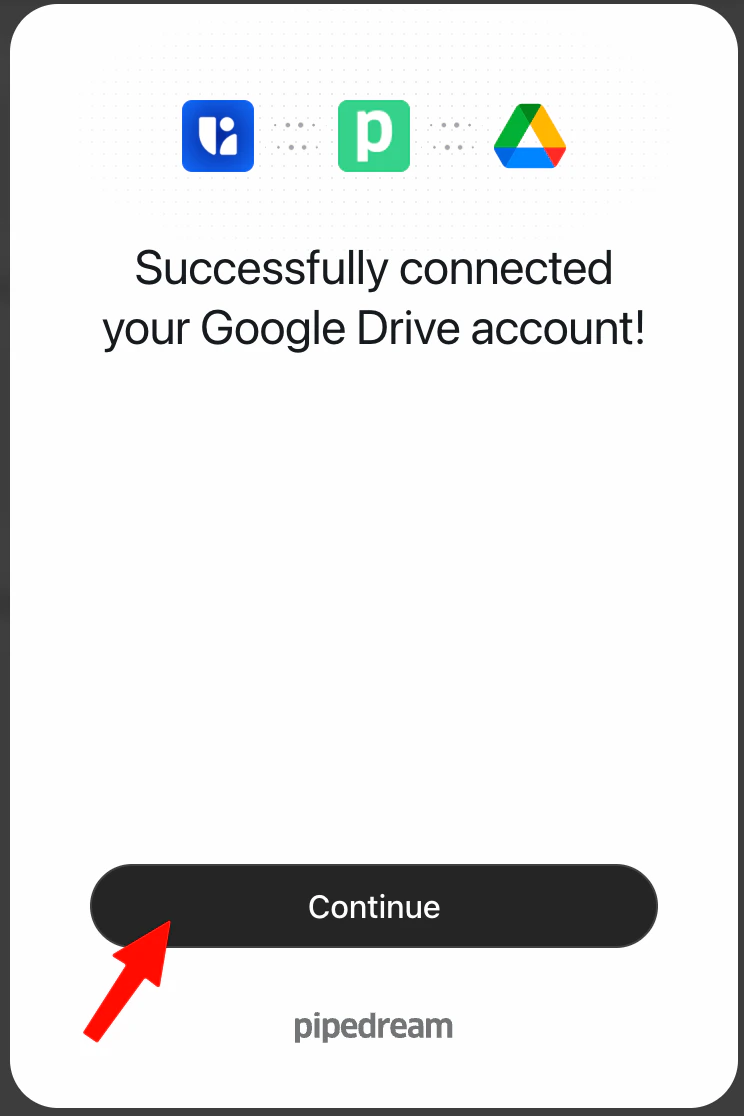
5. You’re done
Back in aidnn, the connector page now shows Connected Google Drive account under the Google Drive title, along with the email of the connected account and the time it was connected.
Use Google Drive files in a prompt
Open any aidnn prompt window and click the Google Drive icon to pick supported file types from your connected Drive. aidnn brings them into the analysis the same way it would any other source.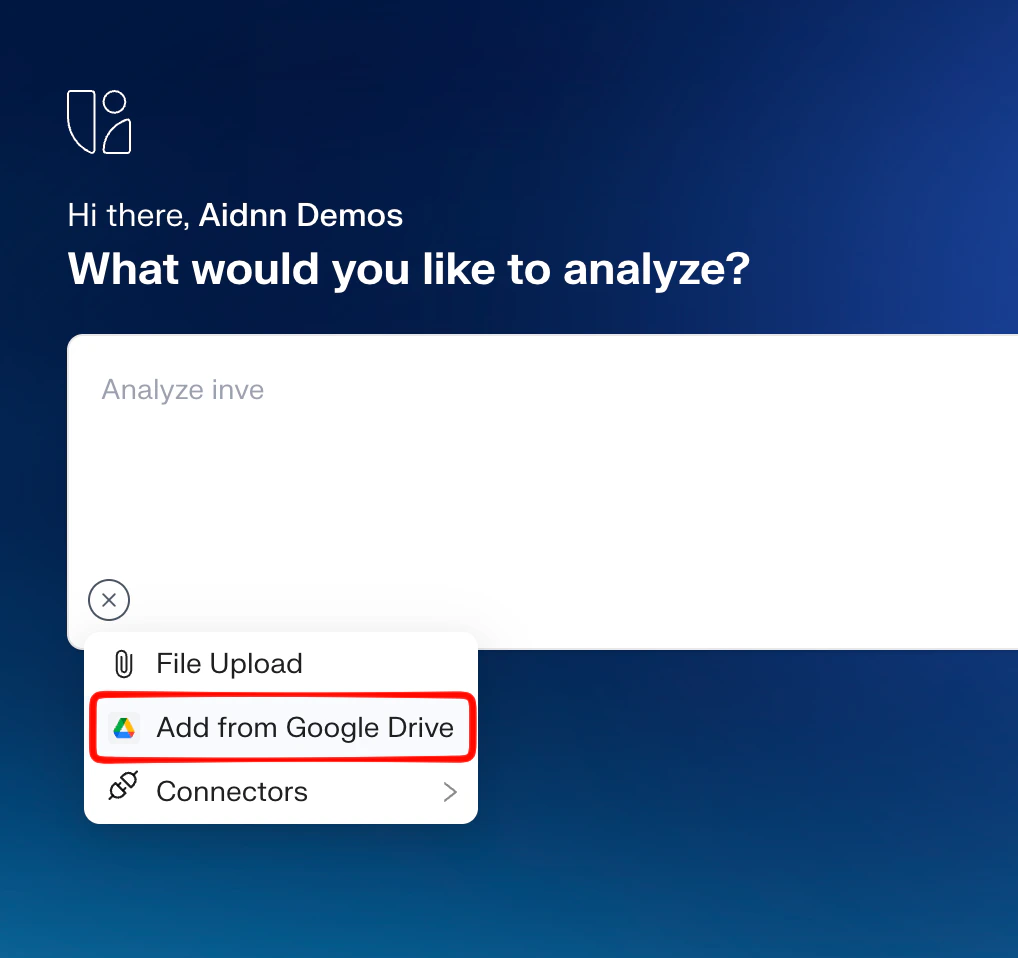
Re-authenticate when the token expires
Google’s OAuth tokens expire after a period of inactivity or when your password changes. When that happens, the connector page shows a Reauthenticate button in the top-right. Click it to run the same Pipedream → Google flow again you don’t need to recreate the connector.