

Starting from the Home Screen
The Home screen is where every new analysis begins. You can return to it at any time by clicking the Home icon or the aidnn logo in the top-left corner.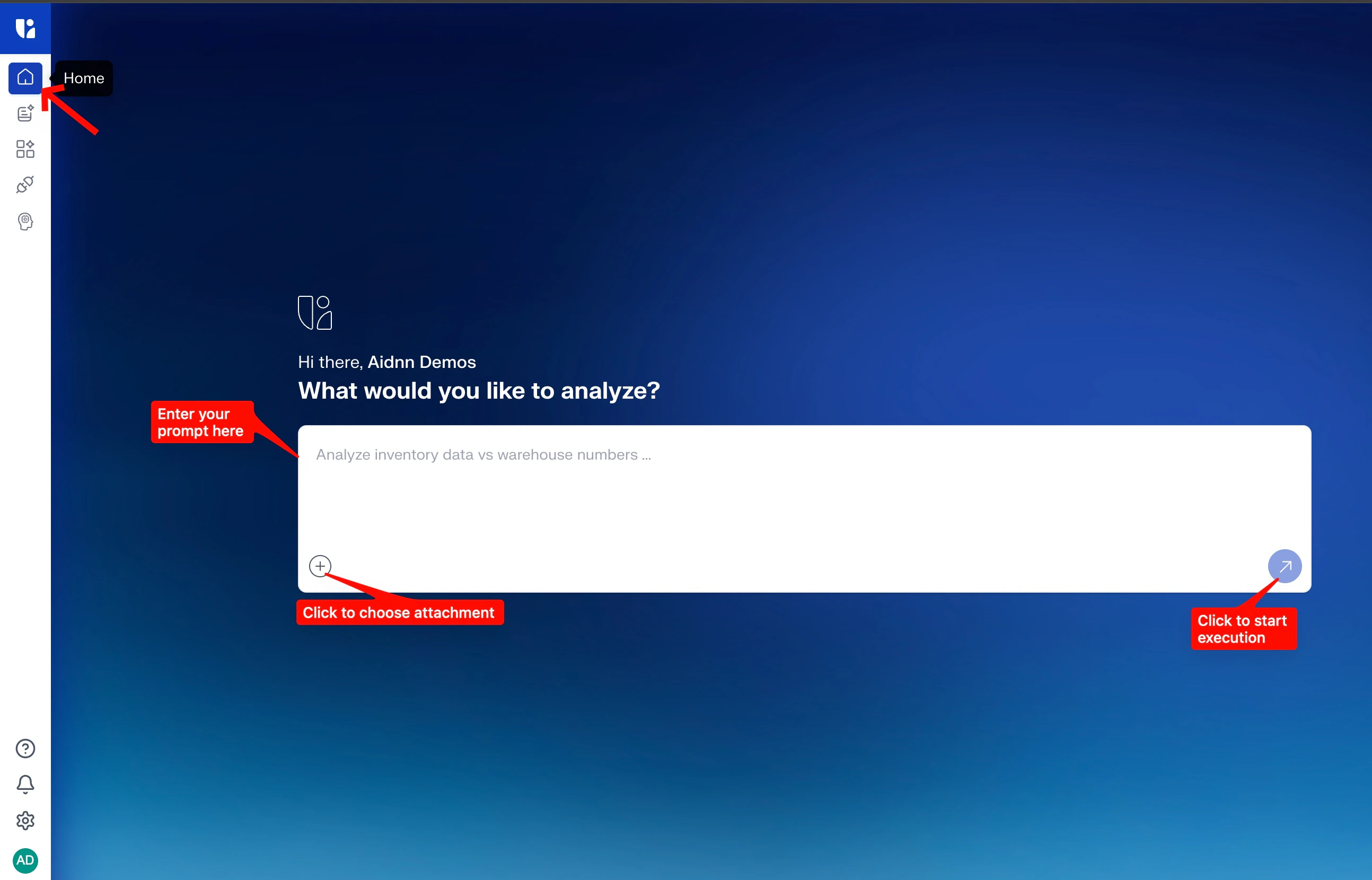
- Prompt box — type your question or analysis request in plain English. This becomes the starting point of your notebook.
- Attachment (+) icon — upload CSV, Excel, or PDF files, or bring in data from Google Drive or a connector. aidnn uses these files as inputs for your analysis.
- Start execution arrow — the blue arrow on the right of the prompt box. Click it to launch your analysis.\
Uploading Your Data
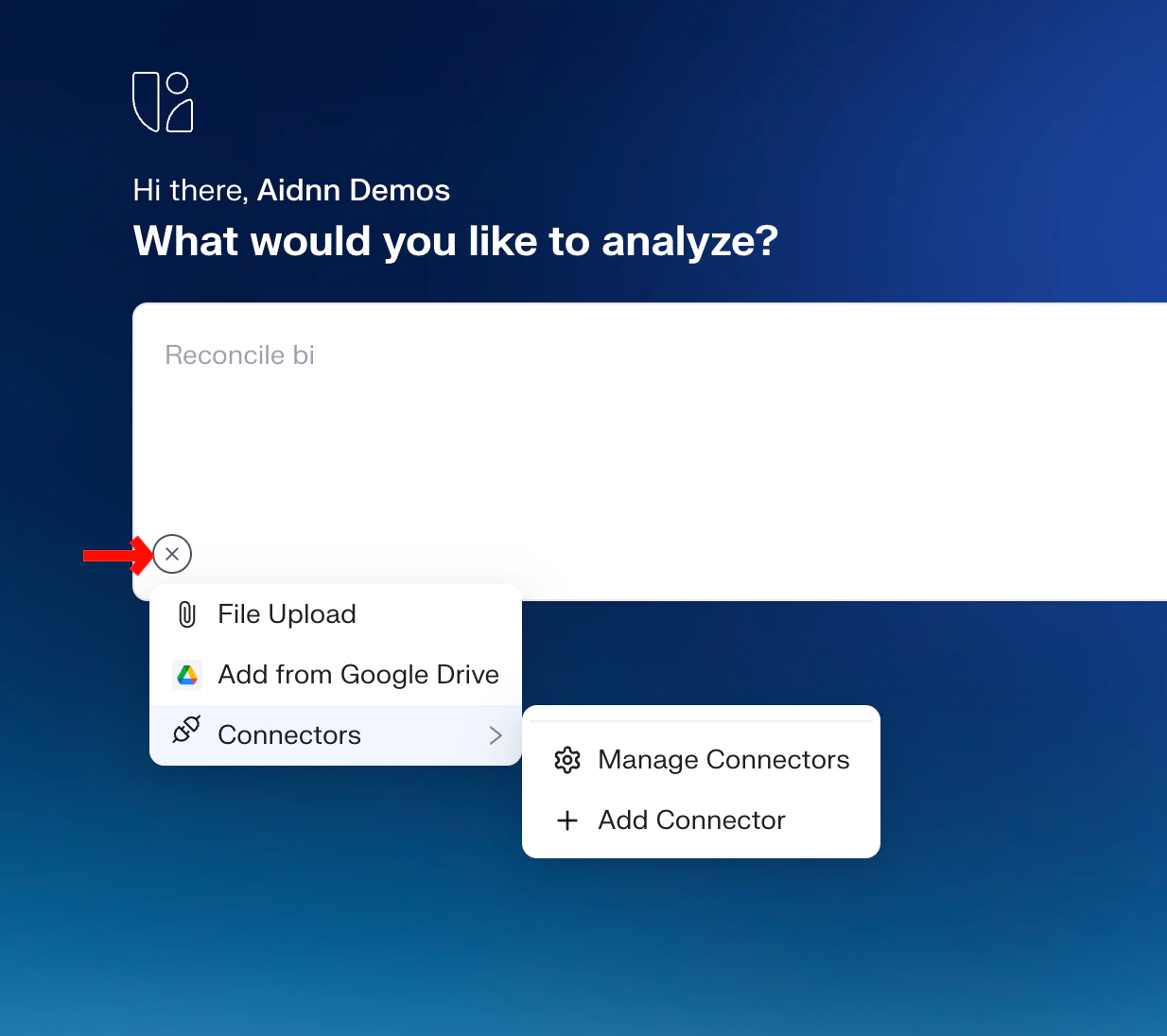
Click the + icon under the prompt box to open the attachment menu. You have three options:- File Upload — upload files directly from your computer (CSV, Excel, PDF).
- Add from Google Drive — pick files from a connected Google Drive account.
- Connectors — pull data from connected systems such as Snowflake, BigQuery, or QuickBooks. Use Manage Connectors to review existing connections, or + Add Connector to set up a new one.
Choosing How aidnn Runs Your Analysis
By default, aidnn runs in analysis mode it drafts a plan, lets you review or edit it, and only then executes. If you want different behavior, type/ in the prompt box to open the commands menu.
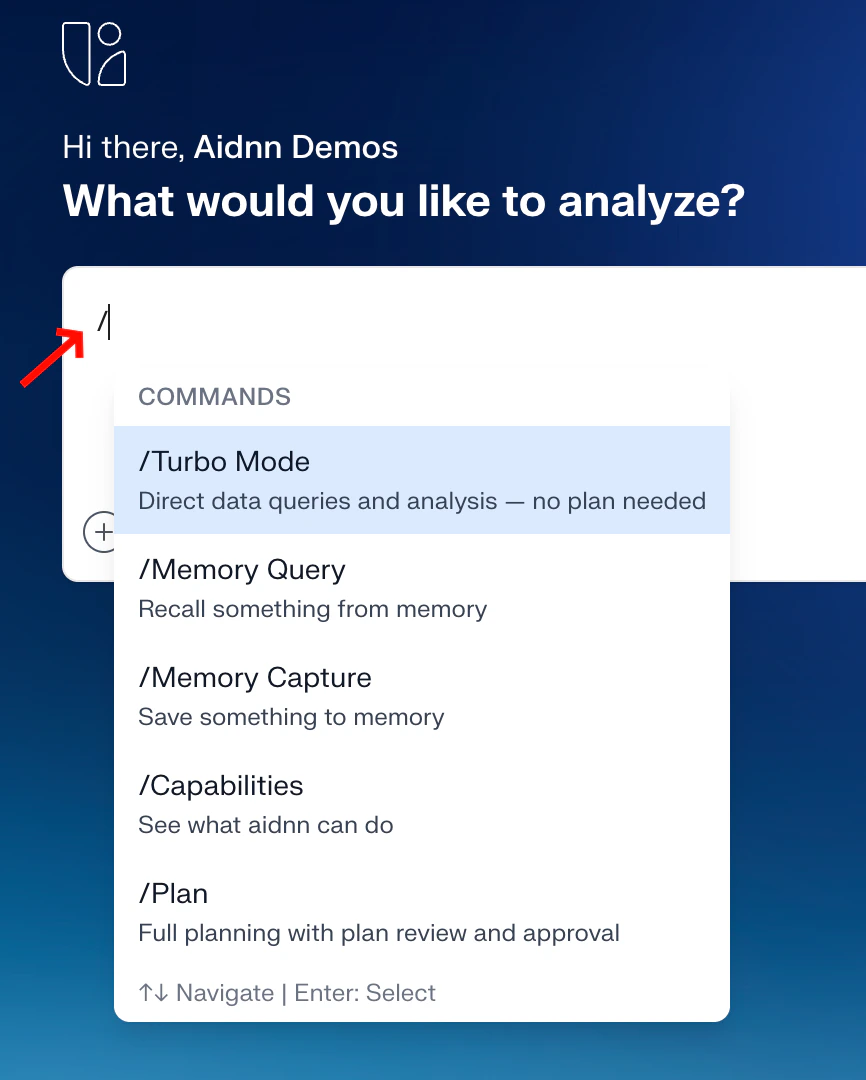
- /Turbo Mode — skips the planning phase and goes straight to direct query execution and results. Best for quick, well-defined questions.
- /Plan — full planning with plan review and approval. This is the default analysis mode.
- /Memory Query — recall something aidnn has stored in memory.
- /Memory Capture — save context, preferences, or facts to memory for future analyses.
- /Capabilities — see what aidnn can do.
Plan → (optional) Plan Edit → Plan Approval → Execution → Results
Starting the Analysis
When your prompt and files are ready, click the blue arrow on the right side of the prompt box. aidnn begins processing your request, moves you to the Analysis View, and your first notebook is created automatically. Every notebook is saved, so you can return to it, modify it, or build on it later.Understanding the Analysis View The Analysis View shows the full lifecycle of your analysis. The left panel lists each phase; the right shows the corresponding output. Every phase is clickable, so you can jump to any step at any time. aidnn moves through four phases:
1. Thought Process
aidnn interprets your request—working out what you are asking for, which datasets and columns are needed, and how to group, filter, and calculate the metrics. This gives you transparency into how your prompt is being understood before anything runs.2. Plan
aidnn generates a step-by-step plan covering data loading, cleaning, aggregation, calculations, and chart or table preparation. You can Approve the plan, Edit it directly, or click Feedback to request changes. If you edit or leave feedback, aidnn creates a re-plan. Once approved (or auto-executed if Auto-Execution is on), aidnn moves to Execution.3. Execution
aidnn carries out every task in the plan—data cleaning, intermediate previews, calculations in sequence, and progress indicators for each step. When it finishes, the left panel shows a green Completed indicator.4. Results
aidnn presents your output with summary statistics (rows, columns, missing values, date ranges), a data preview, key insights, and visualizations like bar charts, line charts, and histograms. Every analysis—prompt, thought process, plan, execution, and results—is automatically saved as a notebook. Clicking any phase on the left panel takes you straight to that screen, making it easy to retrace how aidnn arrived at its results.Working with Your Notebook Once an analysis has finished, the Results page gives you a set of tools to help you organize, extend, explain, and share your notebook. These tools turn a single analysis into a reusable asset for you and your team.
Add Tag
Tags help you group related notebooks together in Workspaces. To add a tag, click Add Tag on the Results page. You can either pick an existing tag or create a new one by typing it and pressing Enter. Each tag needs a name; a description is optional.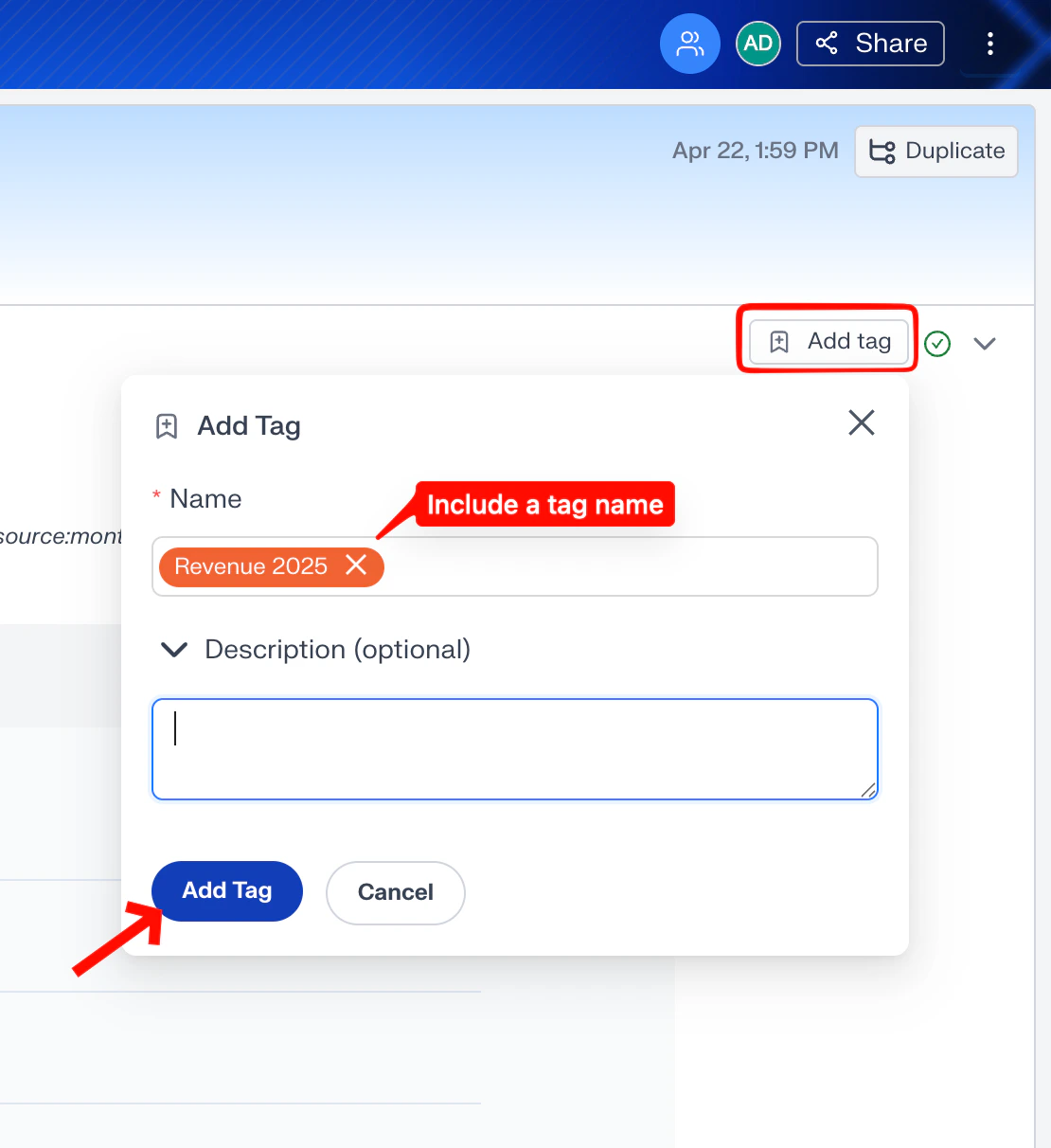
Duplicate
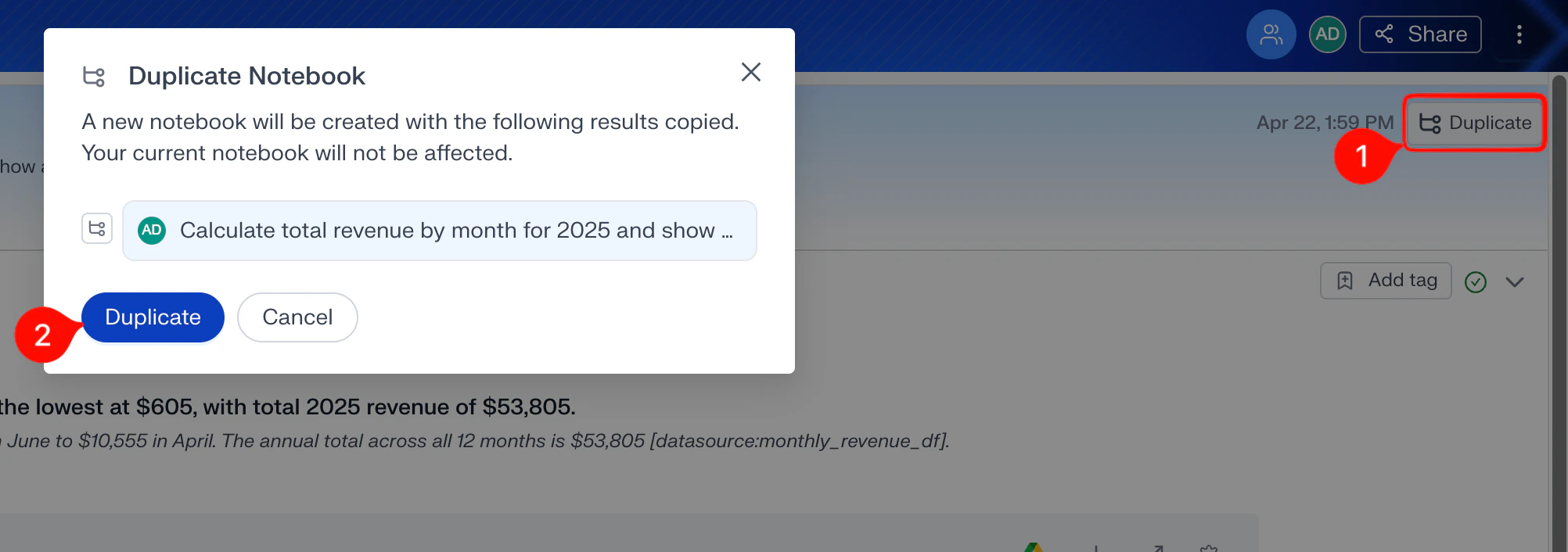
You can always ask a follow-up question from the Results page of the most recent analysis in a notebook. Sometimes, though, you want to start a new line of inquiry from an earlier analysis or continue someone else’s notebook without changing their work. Duplicating lets you do both. To duplicate a previous analysis:1
Select the analysis quad
Click the analysis quad on the left panel that you want to duplicate from.
2
Open Duplicate
Click the Duplicate icon in the top-right corner of the Results page.
3
Confirm in the modal
A confirmation modal appears, summarizing what will be copied. Review it, then click Duplicate to confirm.
4
Continue in the new notebook
aidnn launches a new notebook that keeps every analysis quad up to the one you duplicated from, and adds your new analysis on top.
Explain, Ask aidnn, and Verify
Anyone reading an analysis can ask aidnn to explain, clarify, or verify any part of it. Highlight any text in any section of the analysis to open the tooltip menu shown below.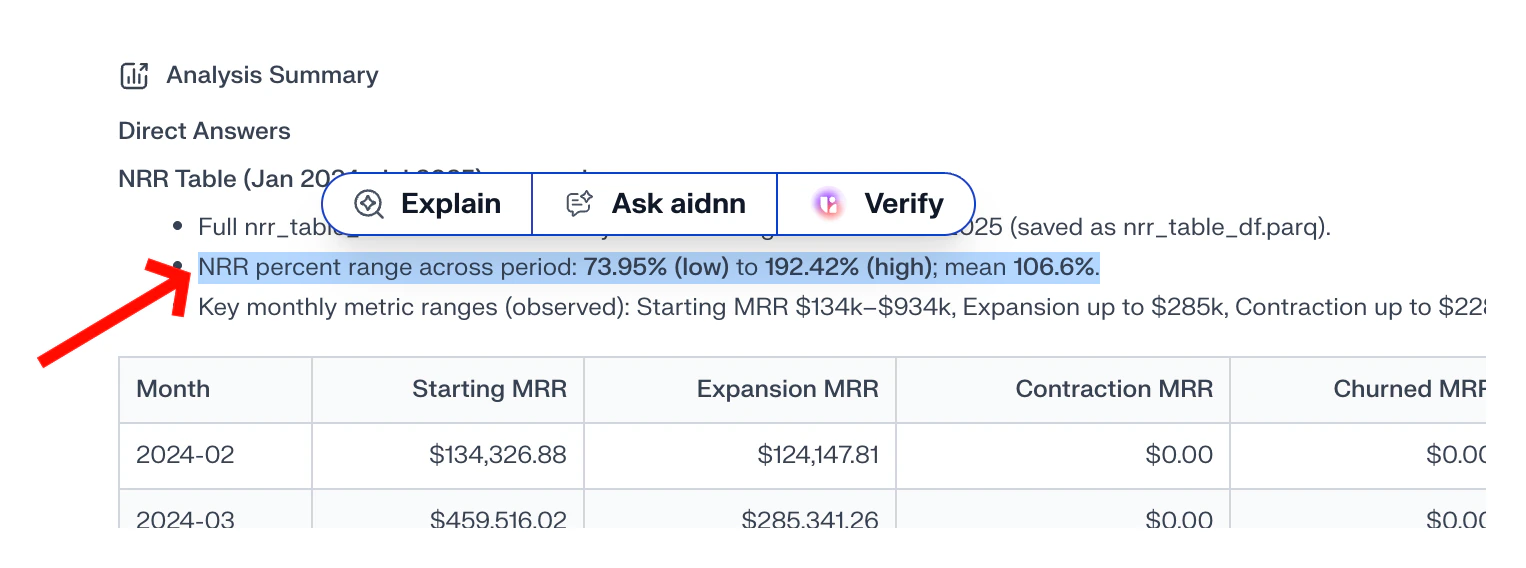
- Explain — opens a side window with an explanation of the highlighted text.
- Ask aidnn — lets you ask a specific question about the highlighted text. aidnn answers your question instead of giving a general explanation.
- Verify — re-checks the underlying calculation or claim so you can confirm the number is correct.
- how a number was calculated
- why a spike or dip occurred
- which factors contributed to a result
Sharing Your Notebook
aidnn makes collaboration as easy as sharing a Google Doc. You can share a notebook so others can view, review, or continue the analysis.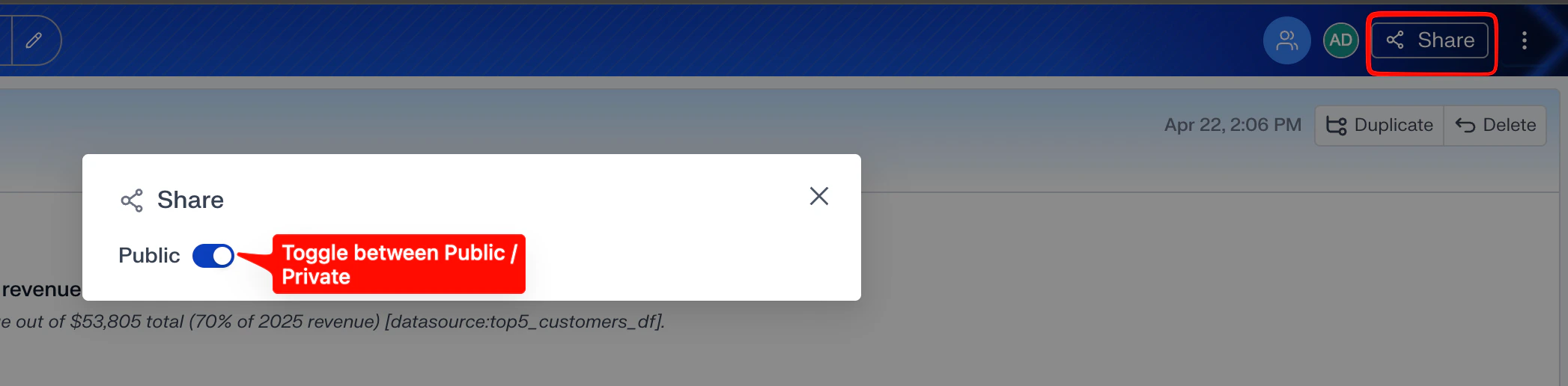
1
Open Share
Click the Share button in the top-right corner of the notebook.
2
Choose access
In the Share dialog, choose who can access it:
- Specific people — share with individuals in the same aidnn account as you.
- Public — toggle Public on to give everyone with the link access.