

Custom MCP Connector
A guide for connecting your data sources to aidnn through MCP (Model Context Protocol).Overview
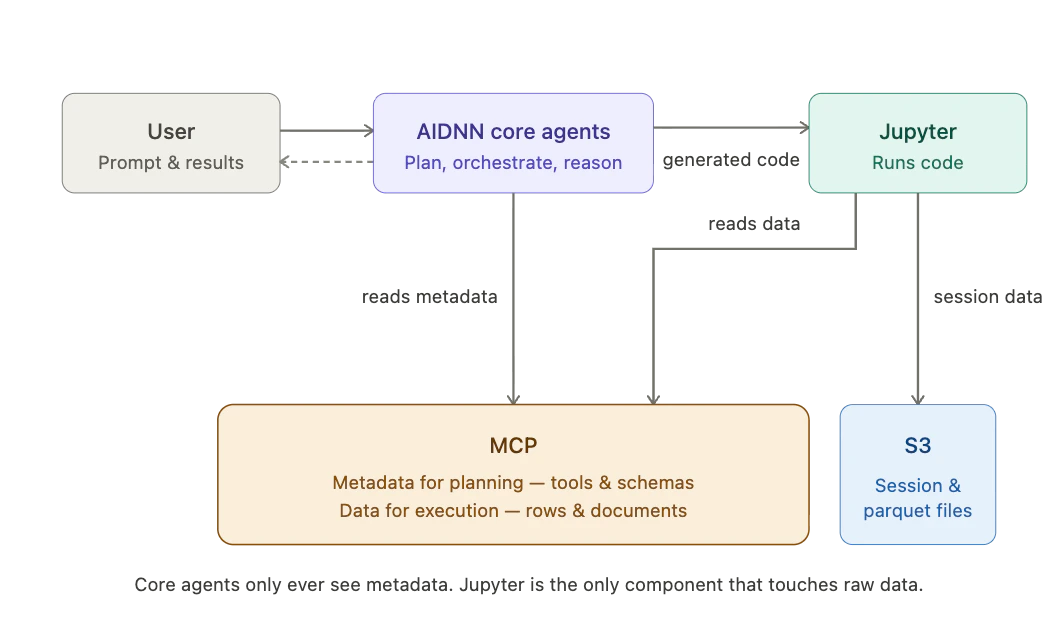
In addition to our built-in connectors, aidnn supports a Custom MCP Connector pattern for integrating any MCP-compliant endpoint. This lets you bring any MCP-compliant server into aidnn with a few clicks. Once connected, the agents automatically learn what tools the endpoint exposes and use them effectively inside analyses. If you’ve built an internal MCP server — or you’re using a vendor’s MCP — you can plug it into aidnn the same way you’d plug in any built-in connector. Why this matters. MCP is how we avoid per-customer custom integration work. Instead of us building a bespoke connector for each of your internal systems, you expose them once via MCP and aidnn picks them up natively. The agents introspect the MCP’s tools, understand what each one does, and route to them as part of normal analysis. What you get:- Metadata for the planner — the agent brain reads MCP metadata to plan an analysis without touching raw data.
- Data for execution — when an analysis needs to pull data, the coding agent calls the MCP tools directly from Jupyter.
- Automatic tool discovery — every tool the MCP exposes becomes available. No per-tool configuration.
- Effective multi-step use — our agents reason about which tools to call, in what order, and how to compose them across an analysis.
How to Add a Custom MCP Connector
⚠️ Entitlement Required Custom MCP Connector is an entitlement that must be activated by Isotopes AI. If you don’t see the Custom MCP option in your connectors, please reach out to support@isotopes.ai to enable this feature for your account.
- Go to the Connectors page → Add New Connector → select Custom MCP (located under the “Other” section).
- Provide the MCP endpoint URL and credentials.
- aidnn tests the connection and verifies authentication.
- aidnn discovers the tools the MCP exposes and indexes what each one does.
- Done. The connector is now available platform-wide (or scoped however you configure).
Where to Find Custom MCP in the UI
The Custom MCP Connector option appears under the “Other” section when adding a new connector. You’ll see it listed alongside other integration options like File Formats, Semantic Layers, and Communication tools.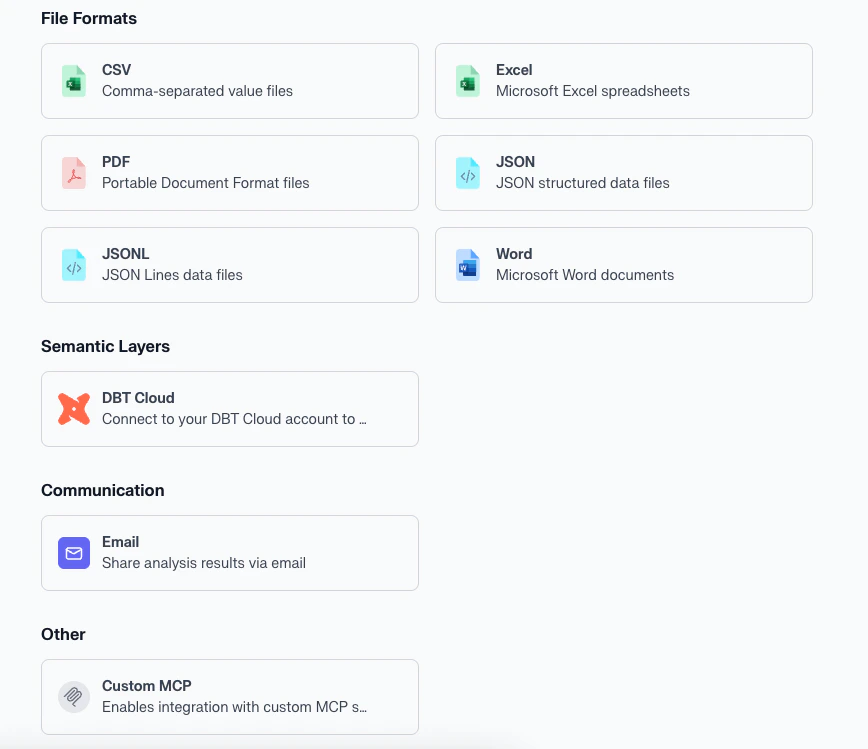
Setup Form
Fill in the connector details: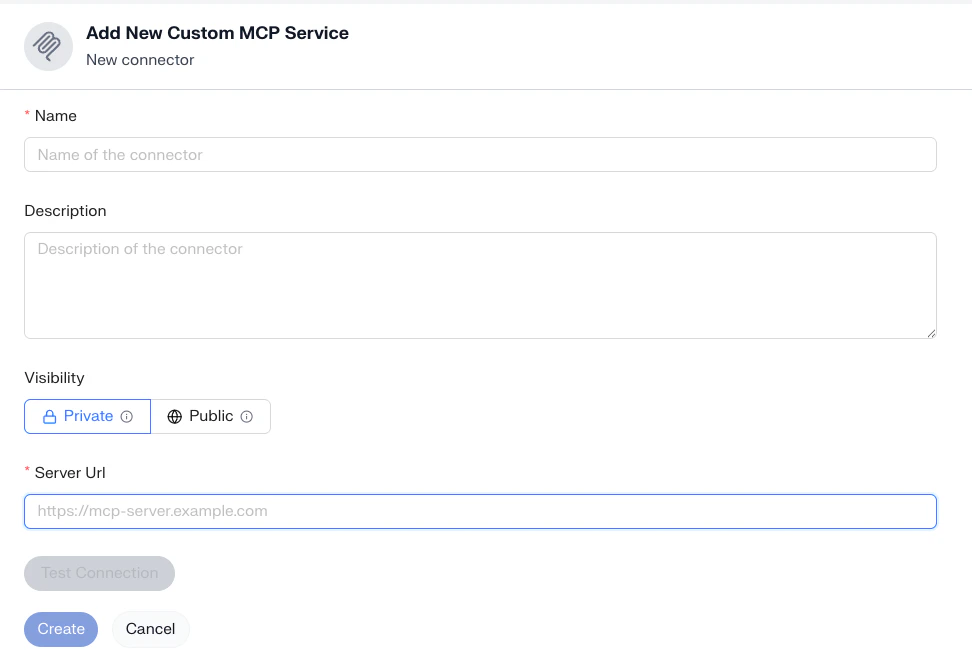
- Name: A descriptive name for your MCP service
- Description: Details about what this connector provides
- Visibility: Choose Private (just for you) or Public (account-wide)
- Server URL: The endpoint where your MCP server is hosted (e.g.,
https://mcp-server.example.com) - Test Connection: Verify the endpoint is reachable before creating
Visibility Controls
Every connector — built-in or custom MCP — has visibility controls:- Private: scoped to the user who created it.
- Account-wide: available to all users in your aidnn tenant.
End-to-End Workflow with MCP
Reaching Your MCP Endpoints: Static Egress IP
aidnn coding agents run on Jupyter (for Data Isolation) and need to reach your MCP endpoints. We provide a static egress IP (or small set of IPs) that all outbound MCP traffic from your dedicated deployment originates from. You add these to the allowlist on your MCP endpoint — firewall rule, security group, WAF, whichever fits your setup — and everything else stays blocked.For additional details or support setting up your Custom MCP Connector, please reach out to support@isotopes.ai.