Choose a connection method
With Cloud SQL Auth Proxy and IAP tunnel, aidnn signs in to Google with a service account key you provide. Google checks the account’s roles before any traffic reaches your database.
1. Prerequisites - Google Cloud admin setup
These steps run in the Google Cloud project that holds the database. The examples use project acme-analytics, region us-central1 and instance acme-pg; substitute your own names. First, enable the APIs the connection uses (the IAP tunnel also needs the last two):Create a read-only database user
Connect as an admin user (for example in Cloud SQL Studio) and create a user that can only read:Create a service account for aidnn
Create a dedicated service account and a key for it. You paste the key into aidnn later. If your organization blocks service account keys (theiam.disableServiceAccountKeyCreation policy), ask your organization admin for an exception for this account.
- Cloud SQL Auth Proxy - Cloud SQL Client (
roles/cloudsql.client). - IAP tunnel - IAP-secured Tunnel User (
roles/iap.tunnelResourceAccessor) and Compute Viewer (roles/compute.viewer).
IAP tunnel only - run a proxy VM
With the IAP tunnel, aidnn reaches a small VM in your network through Google IAP, and the VM forwards to the database’s private IP. The VM has no public IP. The database needs a private IP on the same VPC network as the VM.- Give the VM its own service account with the Cloud SQL Client role. This is not the aidnn service account, and its key is never shared.
- Turn on Private Google Access for the VM’s subnet, so the VM can reach Google without a public IP.
- Allow Google IAP’s address range,
35.235.240.0/20, to reach the VM on port 5432.
2. Add the connector in aidnn
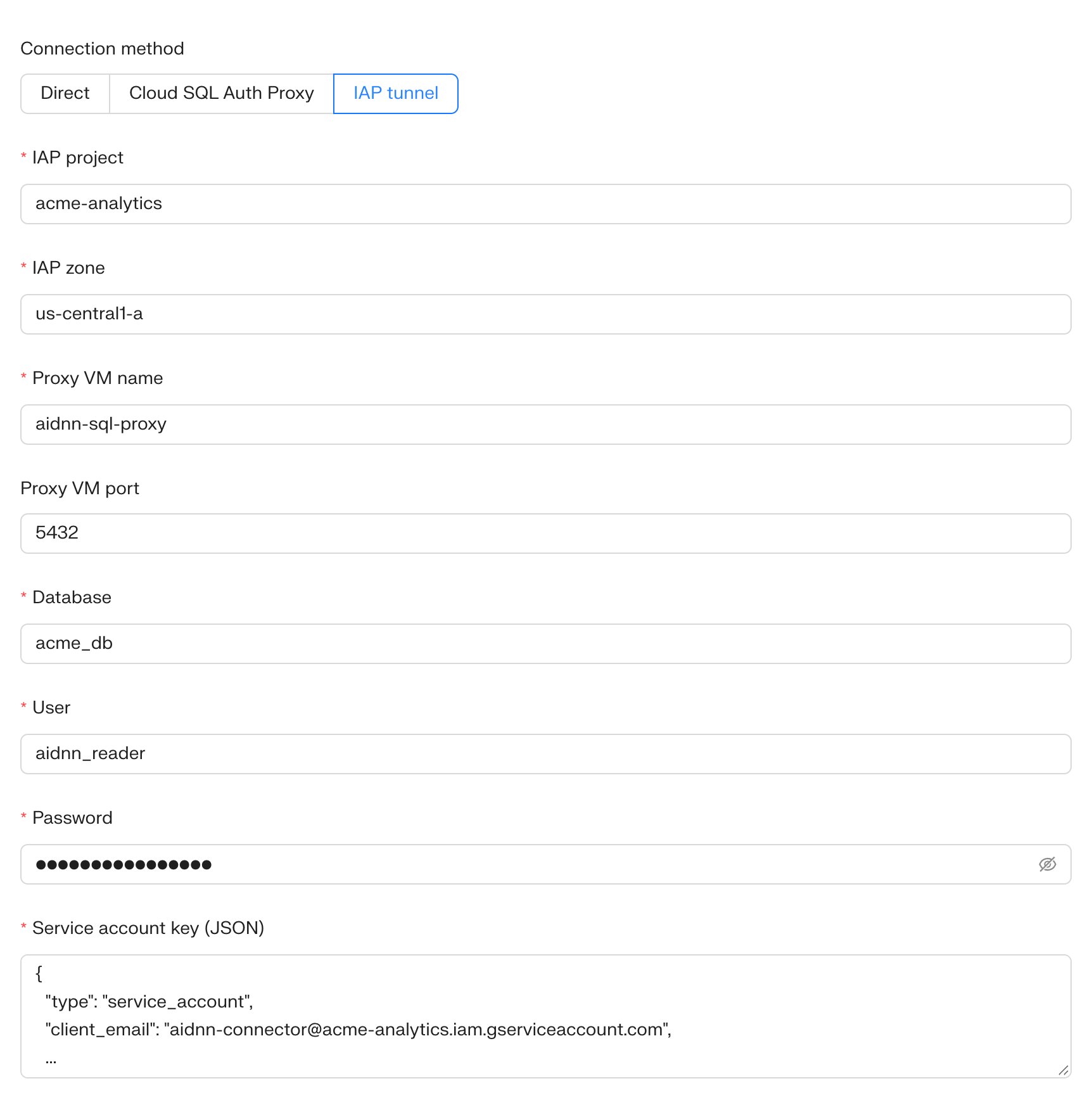
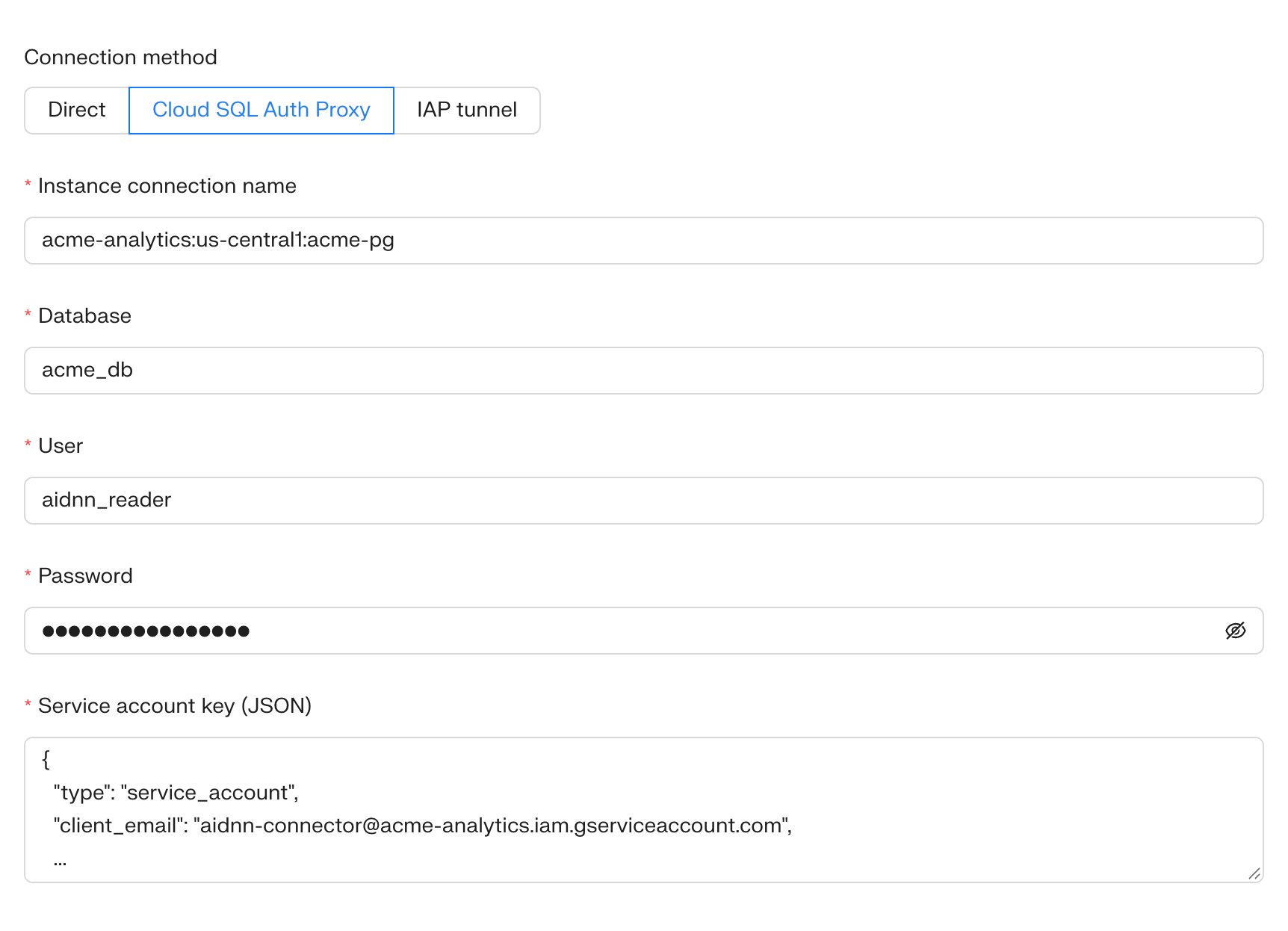
Open Connectors, click Add New Connector and select Postgres, as in the Postgres connector guide. Choose a Connection method, then fill in its fields. Both methods ask for:- Database, User, Password - the database and the read-only user from step 1.
- Service account key (JSON) - the full contents of aidnn-key.json.
Cloud SQL Auth Proxy
- Instance connection name - the Connection name on the instance’s Overview page, for example acme-analytics:us-central1:acme-pg.
IAP tunnel
- IAP project, IAP zone, Proxy VM name - the proxy VM’s project, zone and name, for example acme-analytics, us-central1-a, aidnn-sql-proxy.
- Proxy VM port - 5432, the port the proxy listens on.