

Prerequisites
Before adding the connector, ask your Microsoft Fabric or Azure administrator to:- Create or identify an Azure application registration for the connector, and provide its Client ID, Client Secret, and Tenant ID.
- Grant the application’s service principal access to the Fabric workspace and the Warehouse or Lakehouse SQL analytics endpoint you want aidnn to query. Give it read-only permissions to the data it needs to analyze, such as
SELECT, and do not grant write or administrative permissions. - Confirm the SQL endpoint host and port. Fabric SQL endpoints commonly use port
1433.
Read-only access best practices
- Use a dedicated service principal for aidnn rather than a personal account or an application shared with other workloads.
- For connectors used by dashboards with multiple users, choose Public visibility so the connector is available across your organization. Choose Private only when access should be limited to you.
- Grant access only to the Fabric workspace and Warehouse or Lakehouse that aidnn needs. In the SQL endpoint, grant read-only access to the required data (for example,
SELECTon approved schemas or tables); do not grant write, ownership, or administrative permissions. - If you enter a database in the Database field, also scope the service principal’s SQL permissions to the required data in that database. The field limits the connector’s target; it does not replace Fabric and SQL permissions.
- Store the client secret in your organization’s approved secrets manager. Set an expiration, rotate it before it expires, and update the connector when you rotate it. Never put secrets in documentation, notebooks, or source control.
- Review the service principal’s access periodically and remove permissions that are no longer needed.
Add the Microsoft Fabric connector in aidnn
Open the Connectors page
From the aidnn home screen, click Connectors in the left sidebar.Start a new connector
Click Add New Connector in the top-right corner. Find Microsoft Fabric and select it to open the Add New Microsoft Fabric Service form.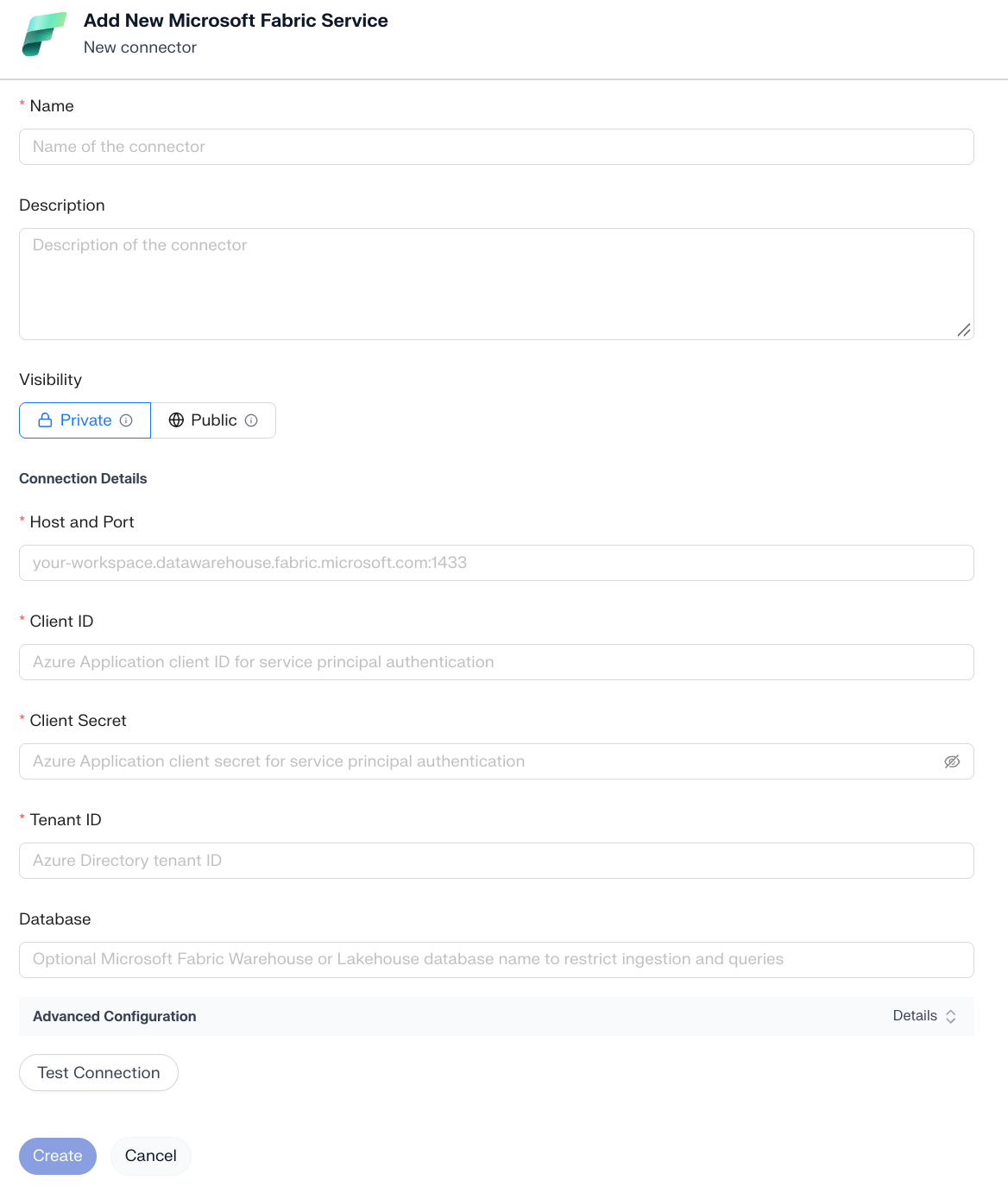
Fill in the connector details
General fields
- Name - A descriptive name for this connection, such as “Fabric Sales Warehouse.”
- Description - Optional context to help people identify the data source.
- Visibility - Choose Public for dashboards used by multiple people so the connector is available to your organization. Choose Private when only you should have access.
Connection details
- Host and Port - The SQL endpoint host and port for your Fabric Warehouse or Lakehouse. Enter them in the format shown by the placeholder, such as
your-workspace.datawarehouse.fabric.microsoft.com:1433. Get the endpoint from Fabric’s SQL connection details. - Client ID - The Azure application (service principal) client ID.
- Client Secret - The client secret for that application.
- Tenant ID - The Microsoft Entra tenant ID that contains the application.
- Database - Optional. Enter a Warehouse or Lakehouse database name to limit the connector’s ingestion and queries to that database. The service principal should still have read-only permissions to the database.