How it works
- Entitlements live in a BigQuery table. A table (for example,
user_entitlements) maps each user’s email to the team whose data they can see. A persona column marks the exceptions — users with the all persona see every row. - The protected table carries a matching column. The table you want to protect (for example,
fin_table) has ateamcolumn. A user sees a row only when their team matches it. - aidnn applies the filter on every access. Whenever the table is queried — from a notebook or a published dashboard — aidnn rewrites the query with the policy filter.
Quick walkthrough
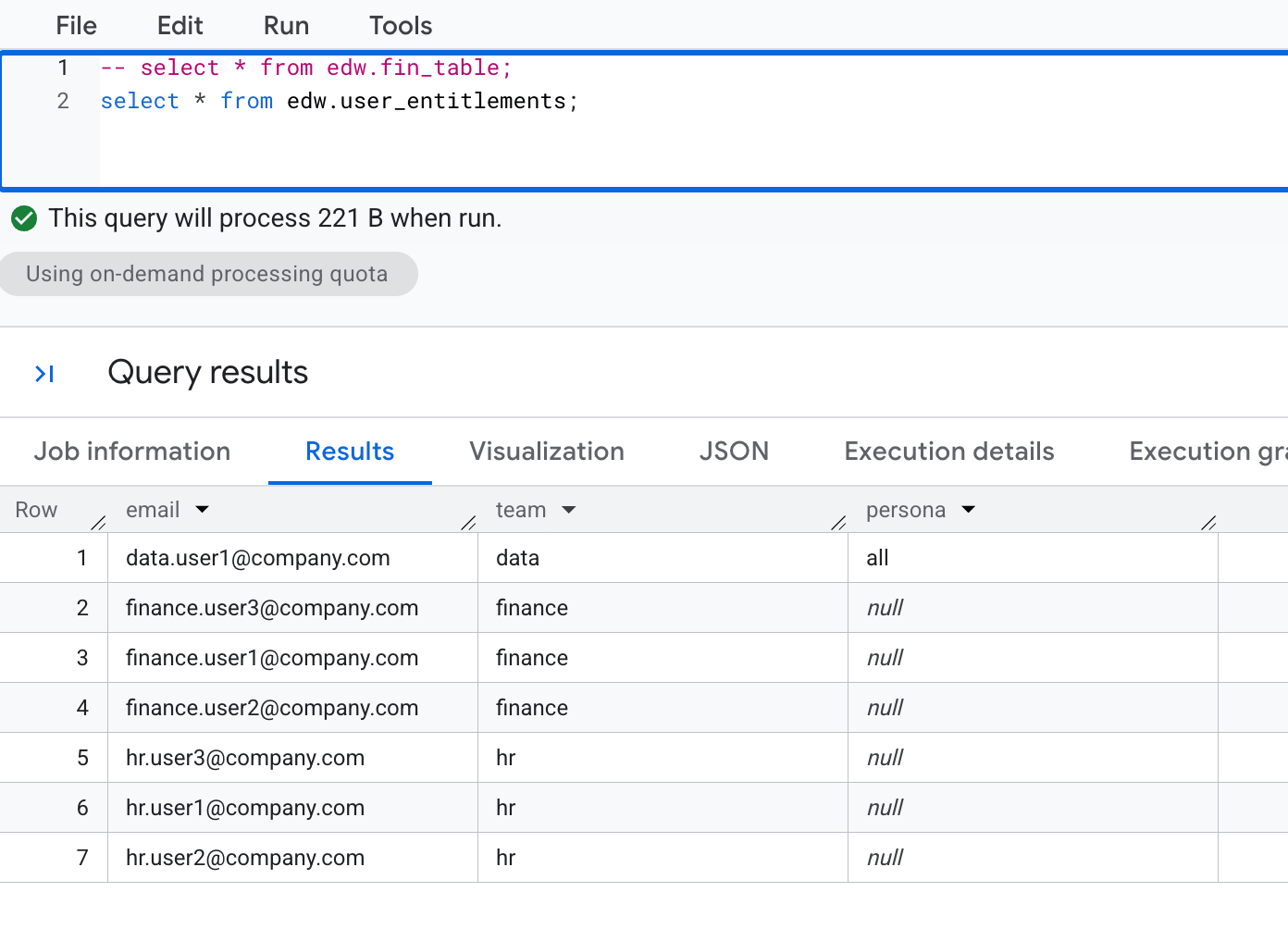
The rest of this guide walks through an example with two teams and three users:1. Store entitlements as a table in BigQuery
Theuser_entitlements table records this mapping — one row per user. Because entitlements are ordinary rows in a table, admins can update who sees what with a quick INSERT or UPDATE — the change takes effect on the next query.
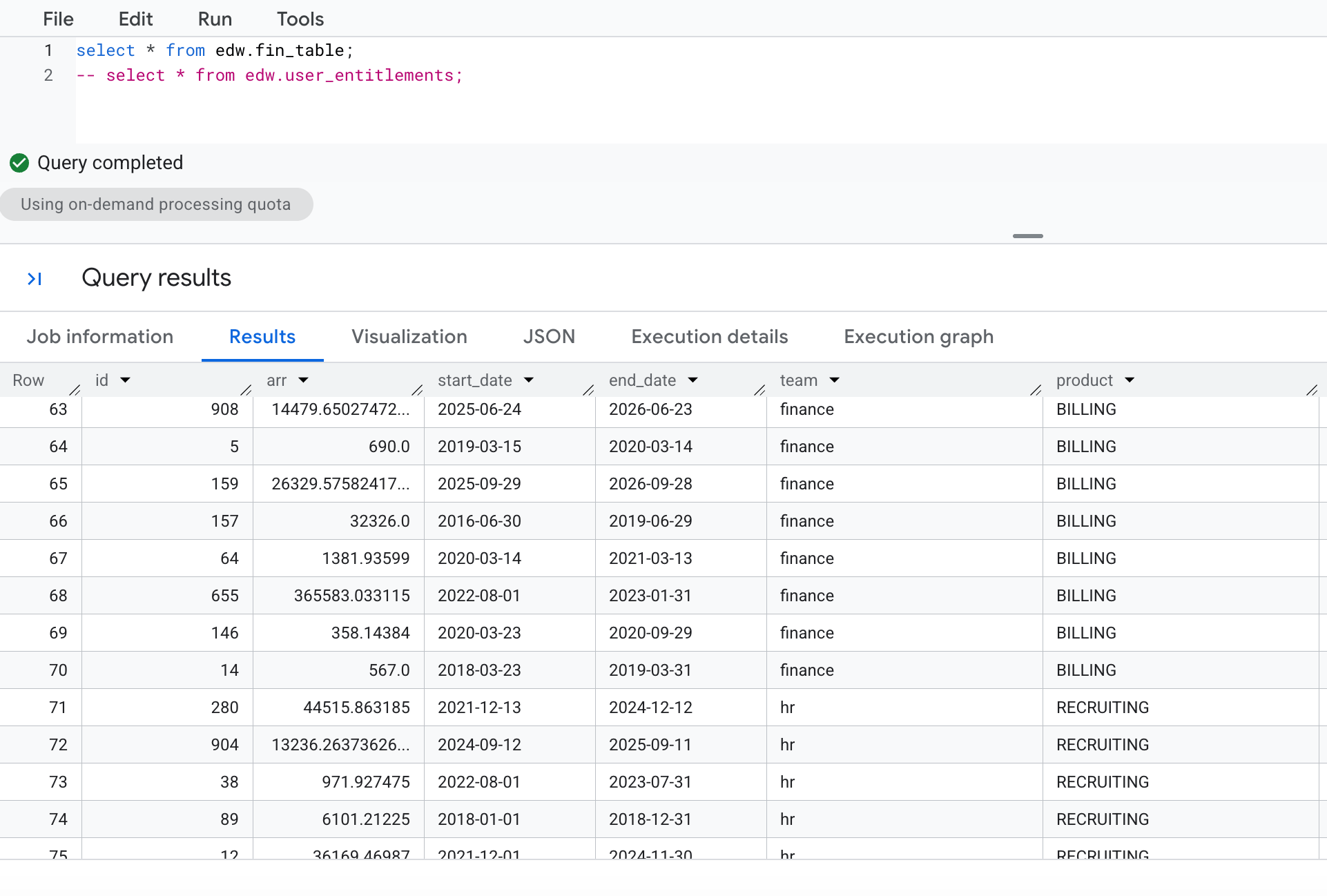
fin_table, carries a team column alongside the data. Rows tagged finance hold the BILLING product; rows tagged hr hold RECRUITING.
2. Add a row access policy
Admins define policies on the connector’s detail page. Open the BigQuery connector from the Connectors page, find the Row Access Policies section, and click Add policy. Pick the table to protect and enter the filter as SQL:'@viewer_email' becomes the signed-in user’s email.
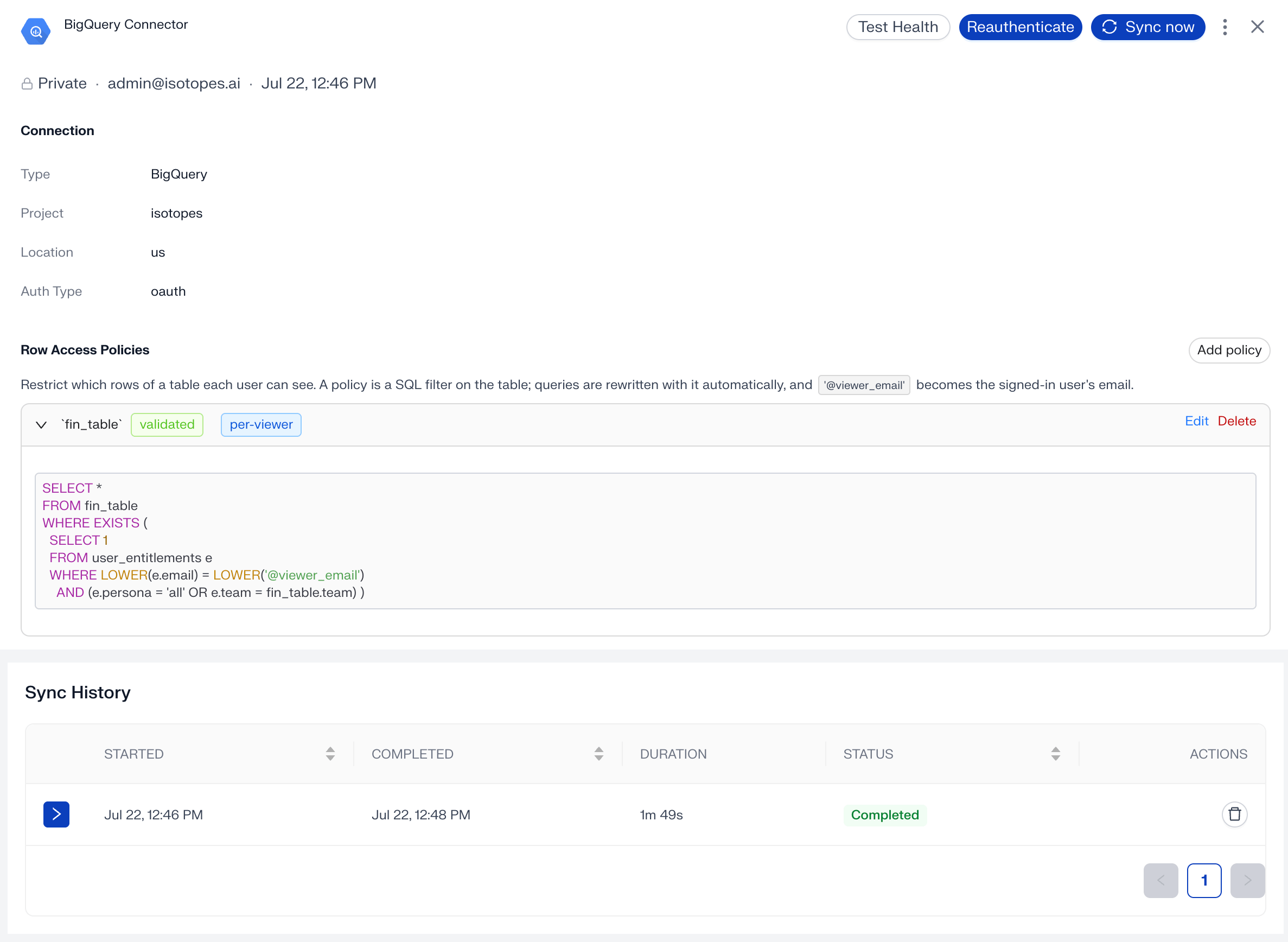
- The policy is stored in aidnn, not in BigQuery — no BigQuery row access policies or IAM changes are needed.
- aidnn applies the filter whenever the table is accessed.
3. Ask the same question as different users
A team member sees only their team’s rows
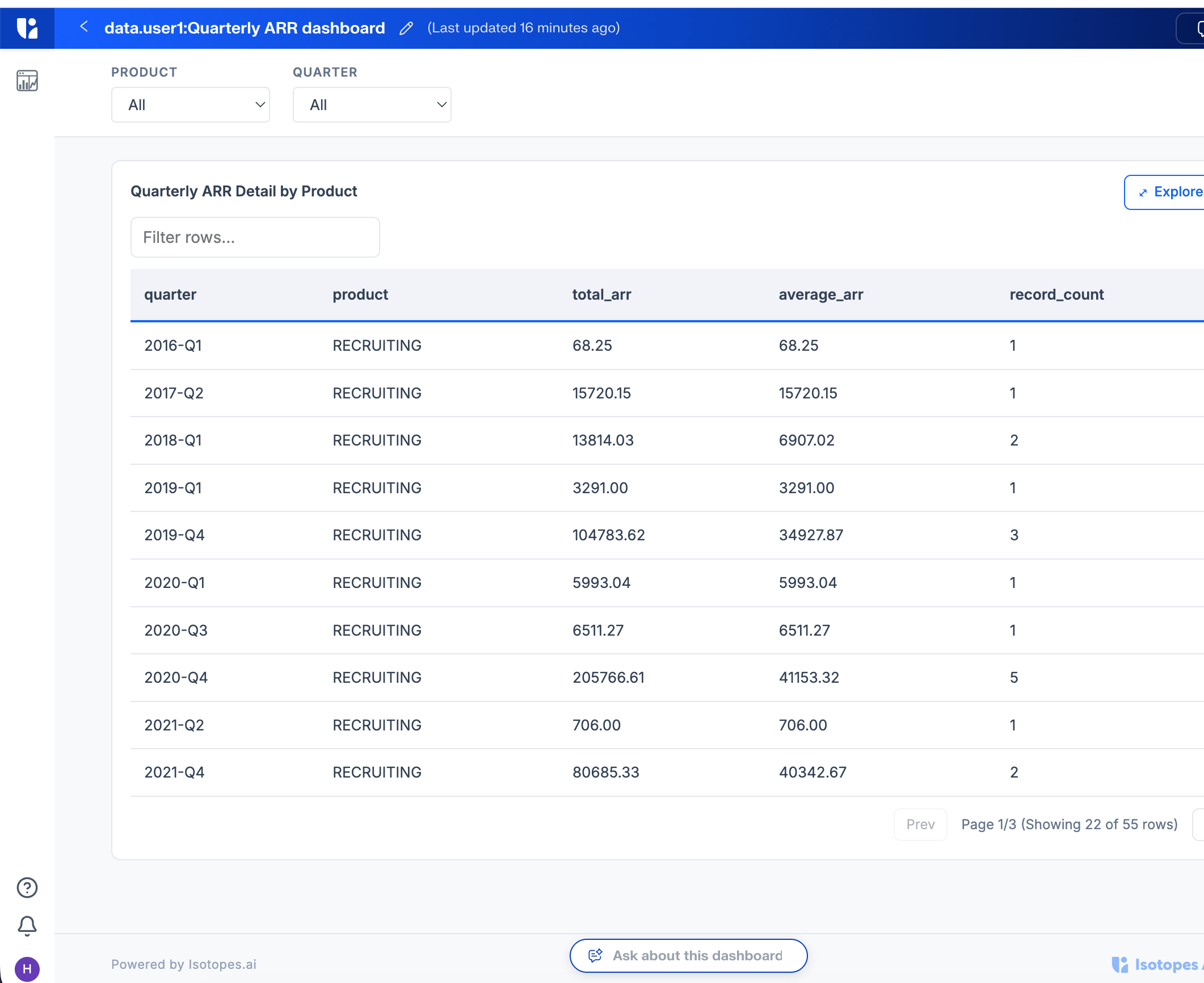
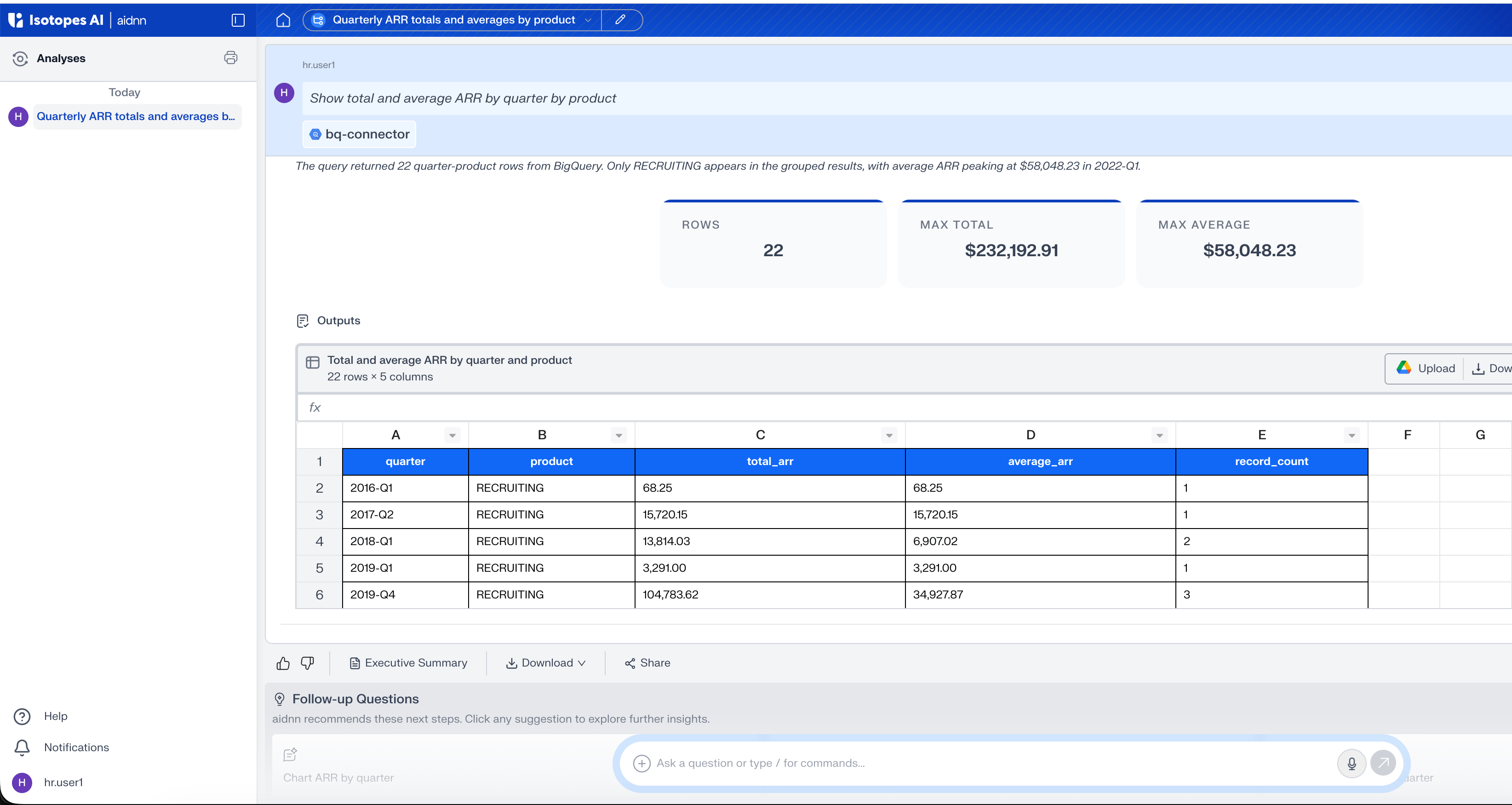
hr.user1, who belongs to the hr team, asks Show total and average ARR by quarter by product in a notebook. The policy filters fin_table down to hr’s rows, so the answer covers only the RECRUITING product — 22 quarter-product rows.
An “all” persona user sees everything
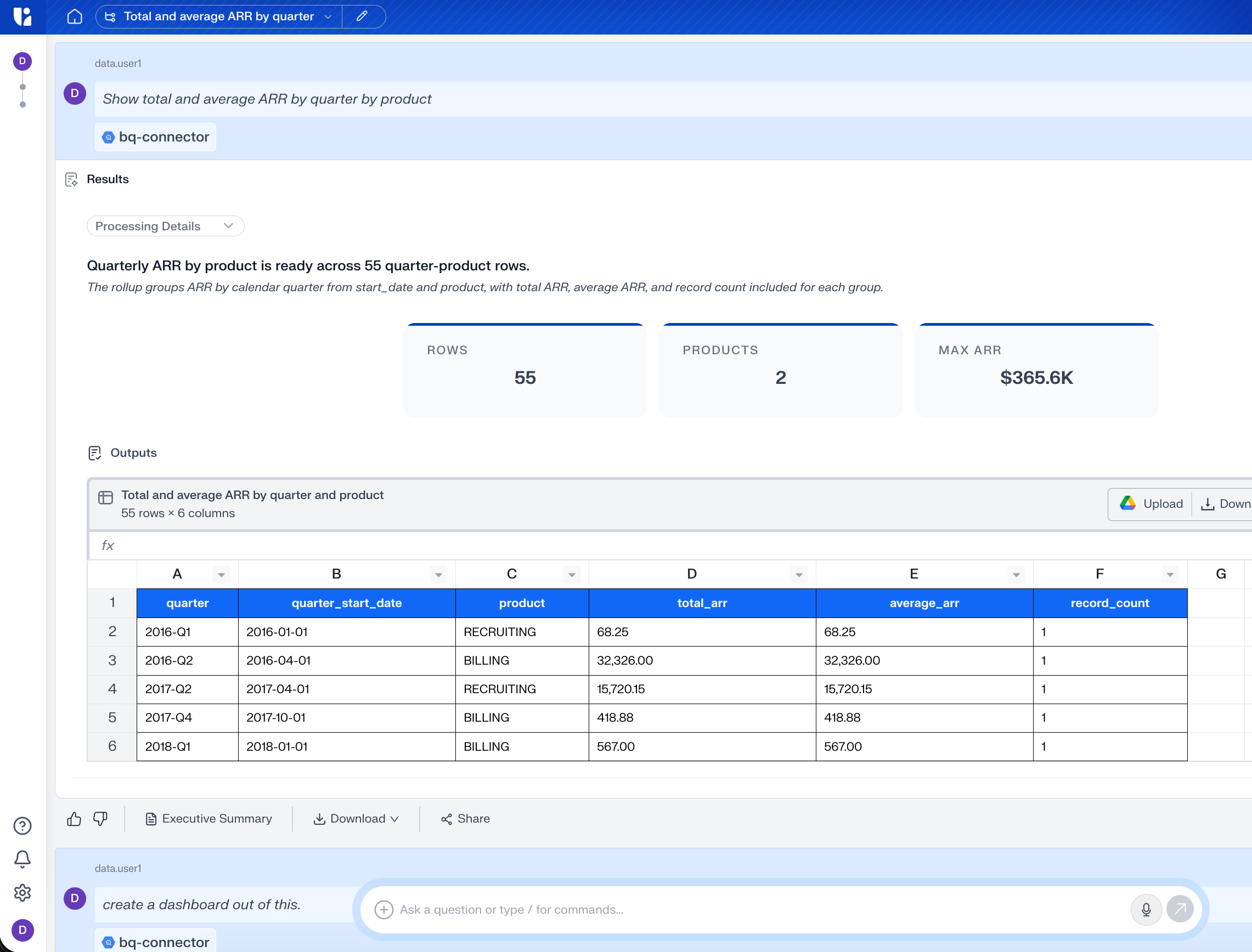
data.user1, who has the all persona and can see every row, asks the same question. Nothing is filtered out — the answer covers both BILLING and RECRUITING, 55 rows.
4. Share a dashboard
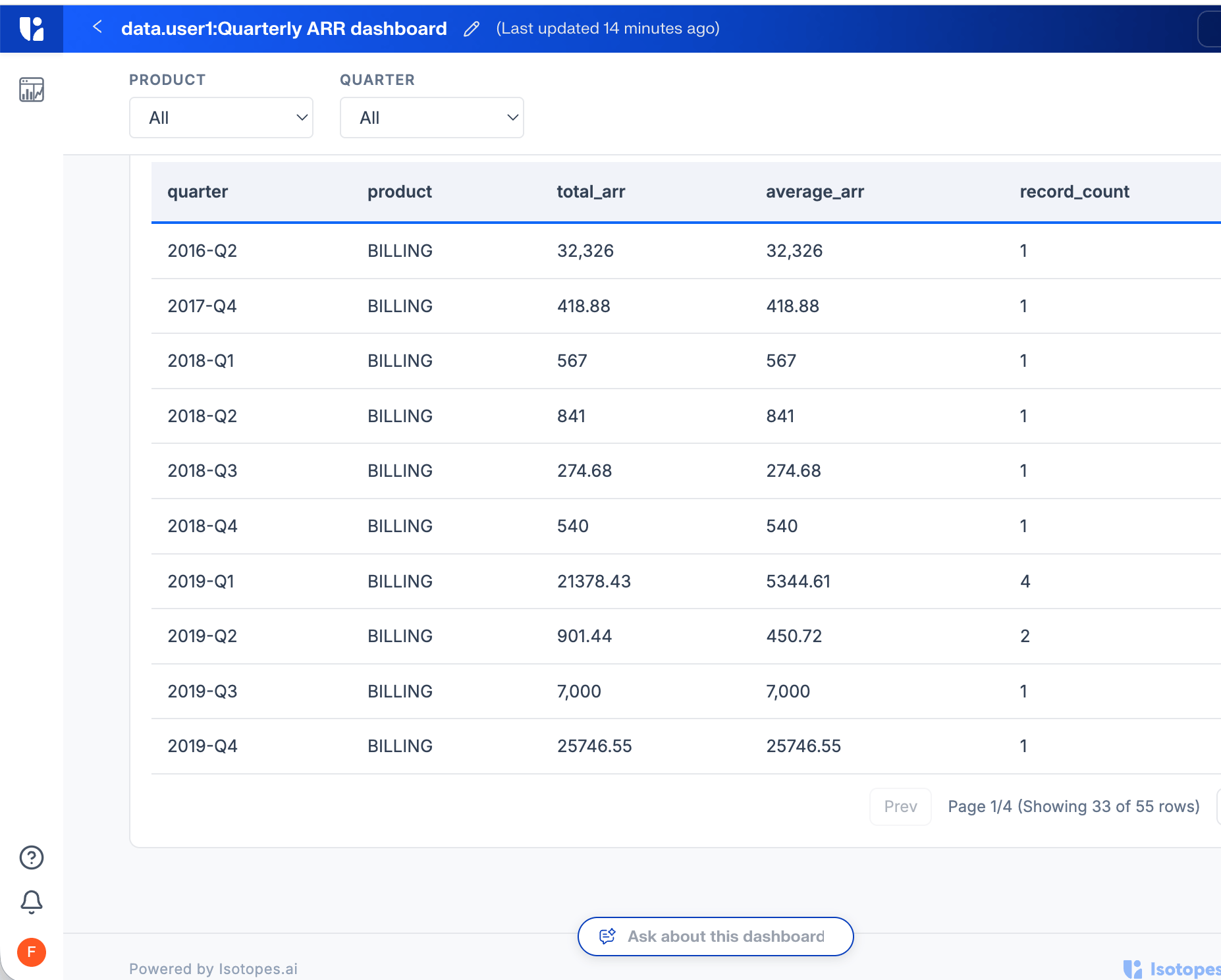
Row access policies follow the data into published dashboards. The filter always runs against the viewer’s entitlements — not the author’s — so one shared dashboard shows each user a different slice.Step 1 - Create and publish the dashboard
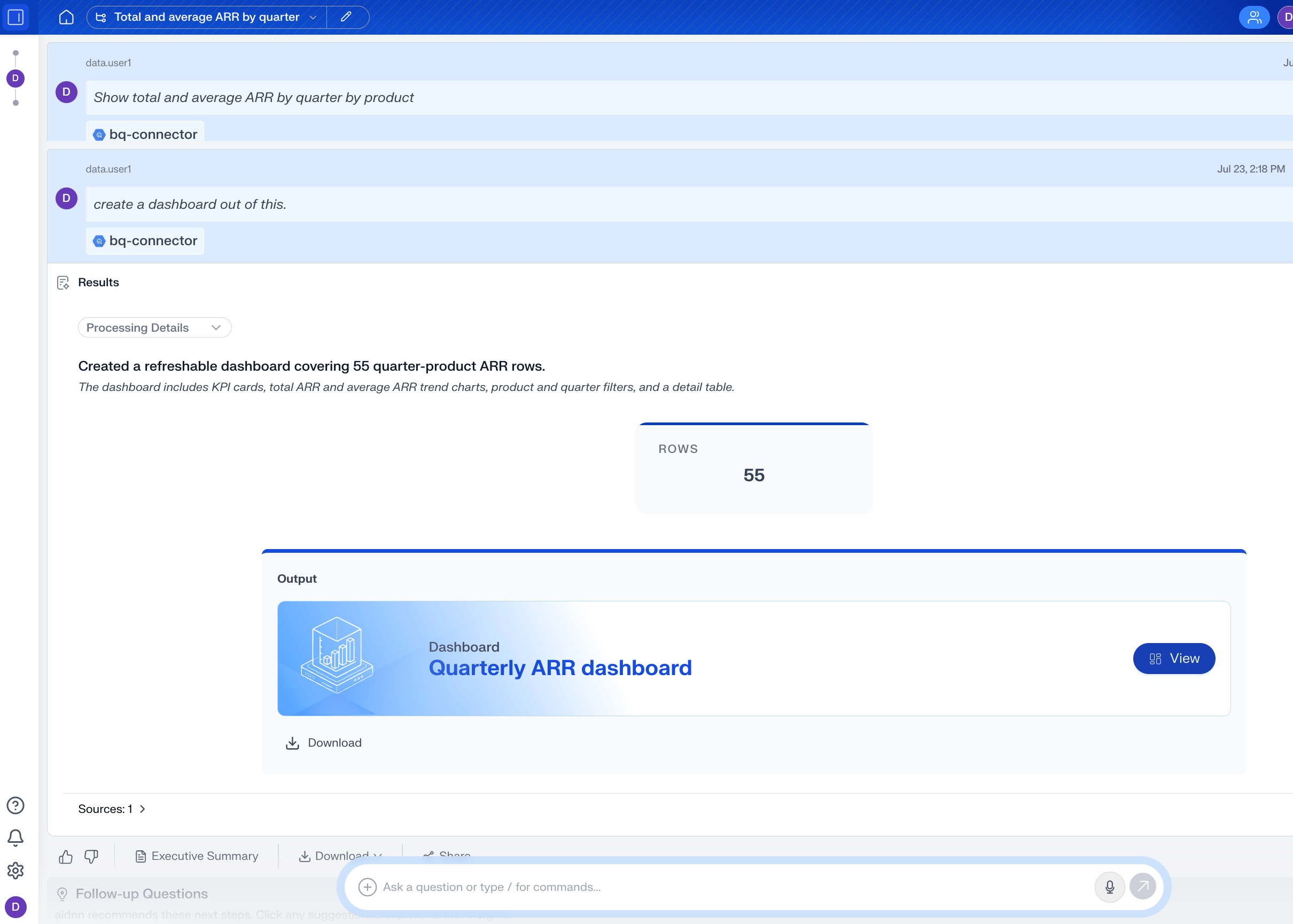
data.user1 asks aidnn to create a dashboard out of this. aidnn builds the Quarterly ARR dashboard from the full 55-row result, and data.user1 publishes it.
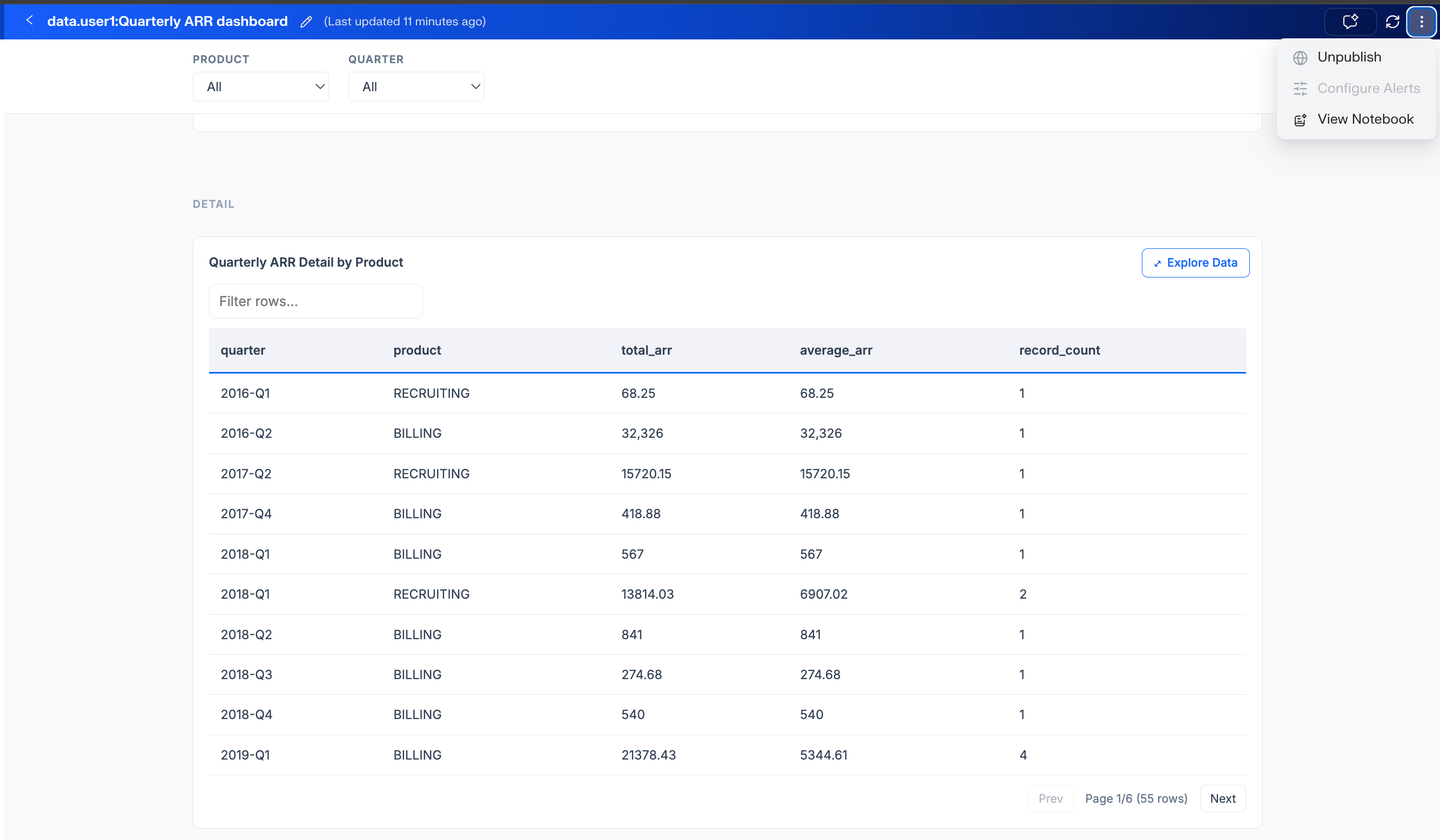
data.user1 sees both products — all 55 rows.
Step 2 - finance.user1 opens it and sees only finance rows
Published dashboards appear under the Dashboards section.finance.user1 finds data.user1’s dashboard under All Dashboards.
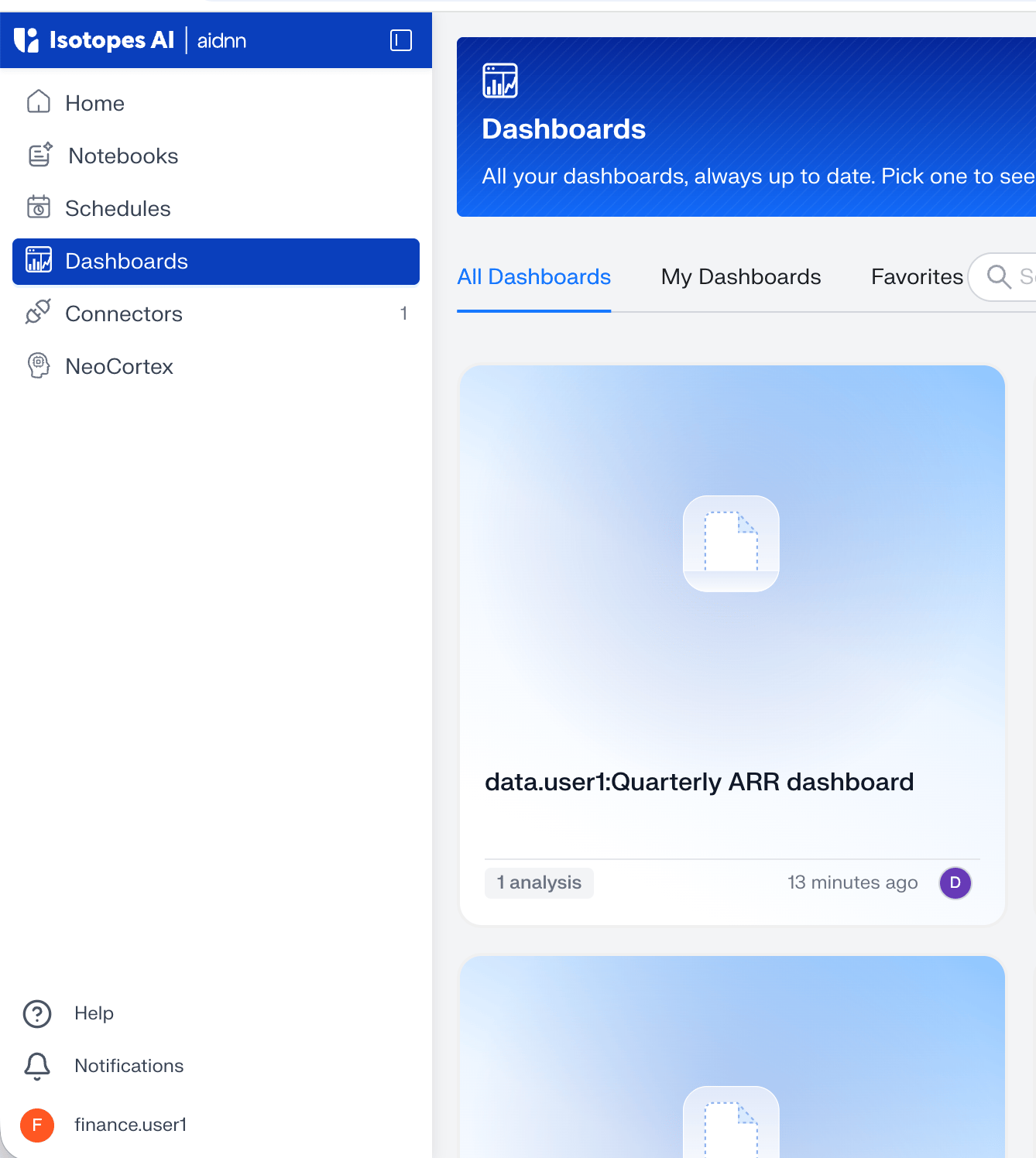
finance.user1 sees only the finance team’s slice — BILLING rows, 33 of the 55.
Step 3 - hr.user1 opens it and sees only hr rows
hr.user1 finds the same dashboard under the Dashboards section.
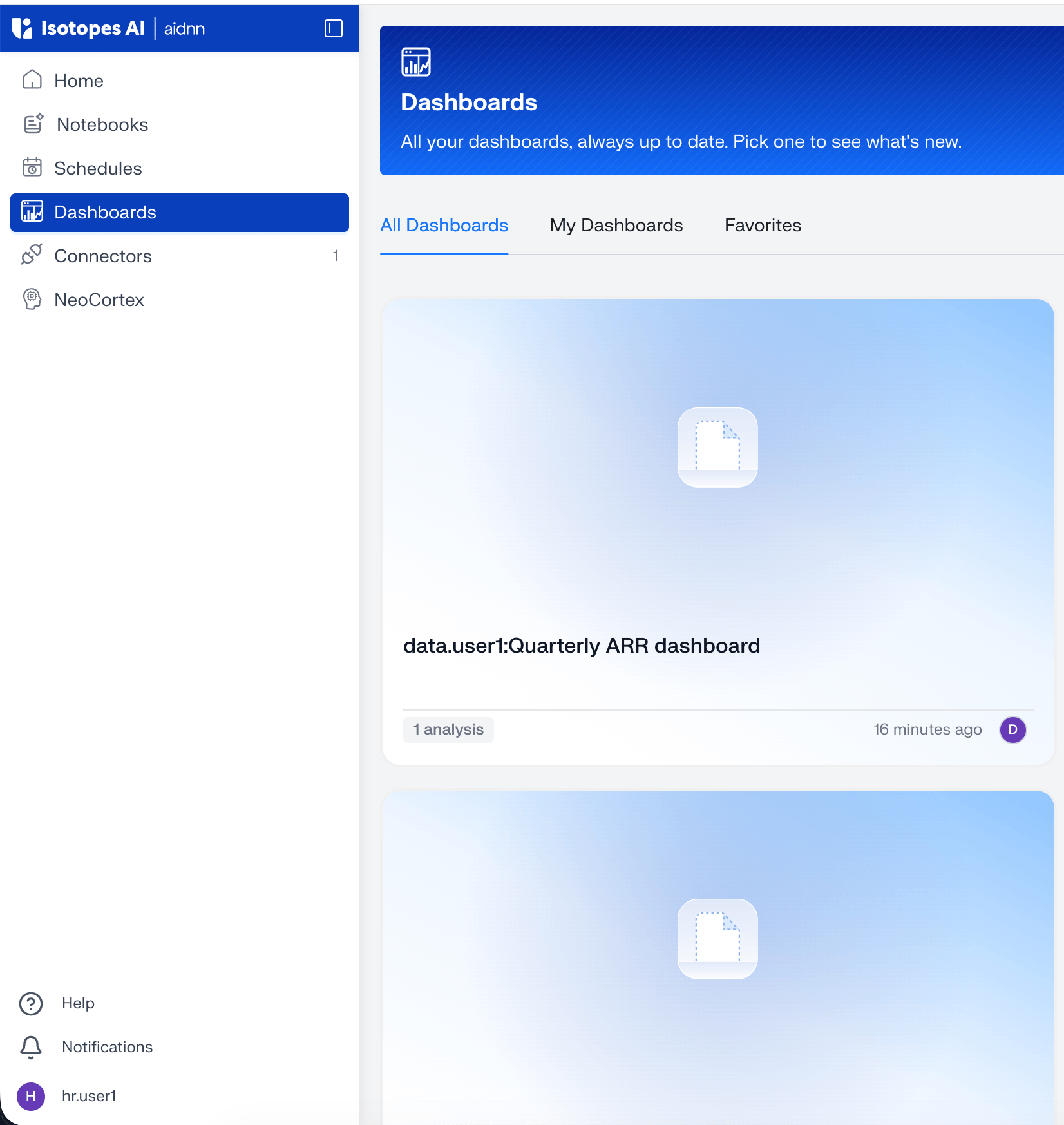
hr.user1 sees only RECRUITING rows — 22 of the 55.